
1
Send to the shared area
When one item or a multi-selection is active, the shared-area button can copy the selected part from the workspace, group, true/false action branch, dialog, and variables surfaces into the device-local library.
No-Code Workspace — Block Reference
Logic Workspace · SettingsCount and measure visible text or buttons in a region.
Documented for app version 1.0.64Updated:
Block Preview
Basic settings for the detection block in the app.
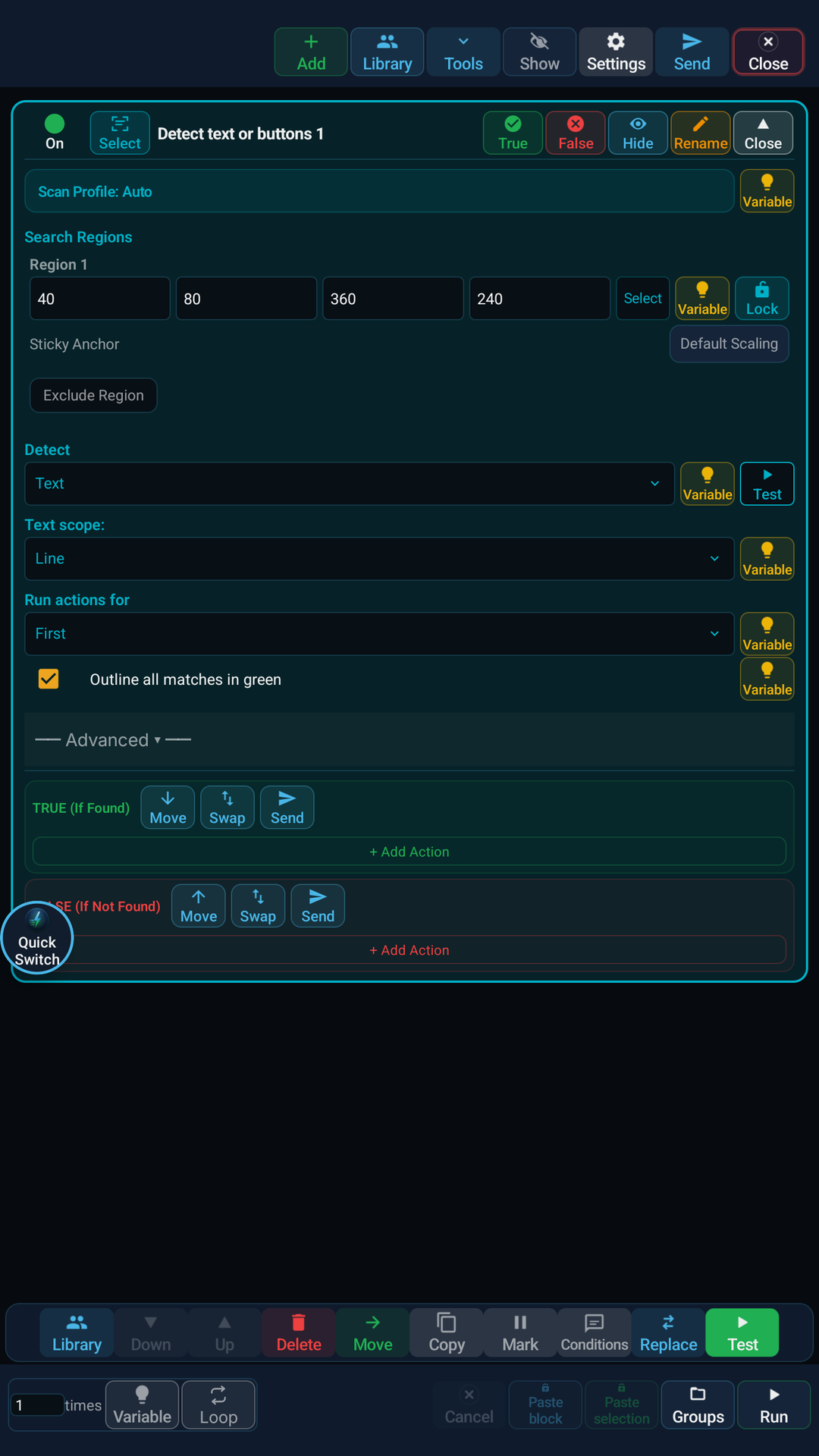
Block Preview
The detection block with its advanced settings expanded.
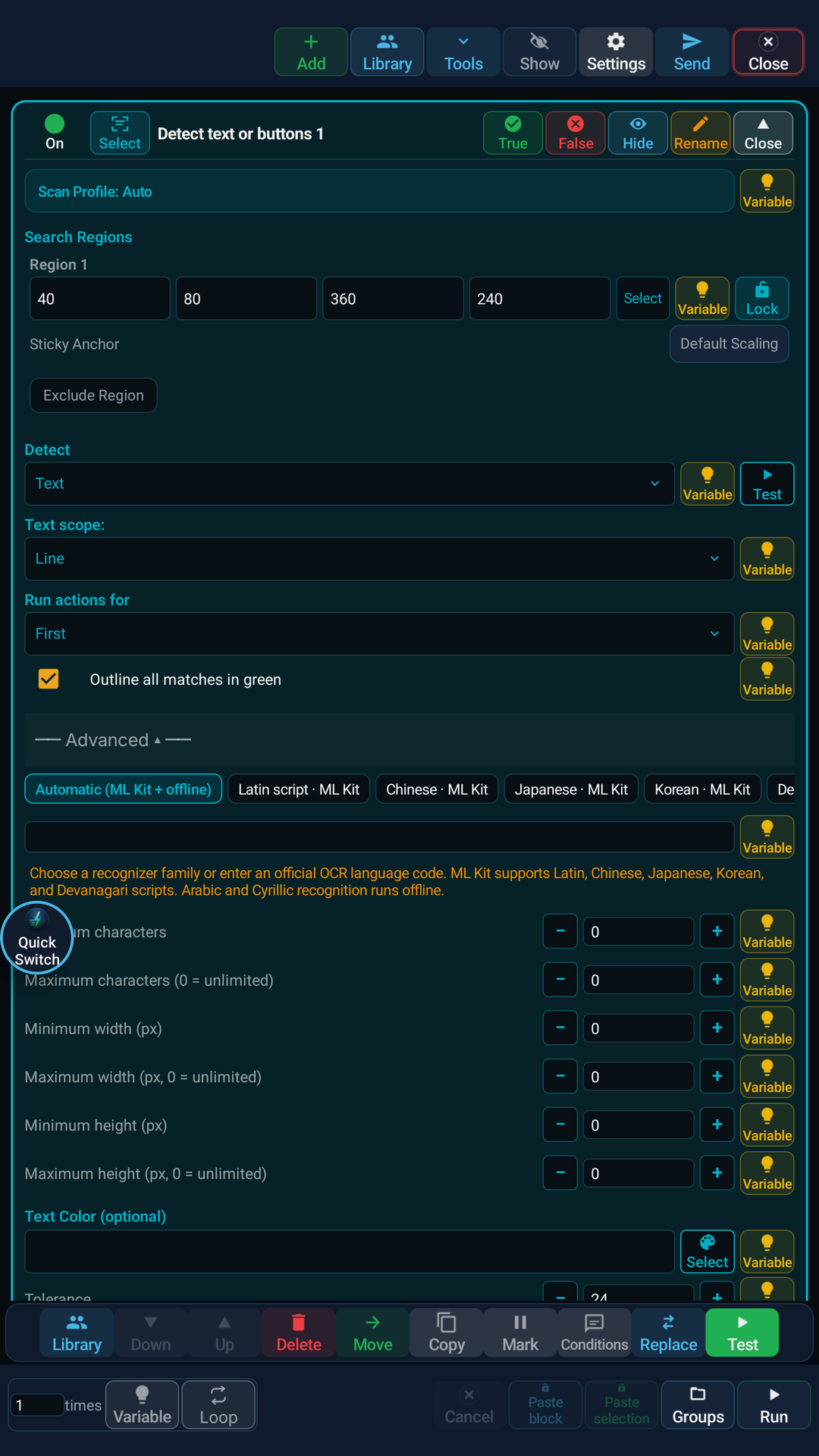
Get the center, width and height of each match without entering a search phrase. Text uses OCR. Button detection can use Android control bounds or visual outlines.
IMAGE, TEXT, COLOR and the other search blocks that use the Search Regions editor can define several search regions with + Add Region; OCR_VALUE tries its read regions in order. Inside a search region, Exclude Region skips noisy areas such as a HUD or a badge, and it applies only to the search region it belongs to. From 1.0.51 one search region can hold several excluded regions, each with its own shape and its own variable or Dialog binding.v1.0.51+
You can now assign a sticky anchor to each search region. This brings Region.sticky into the no-code surface so the region can stay aligned to anchors such as top_left, bottom_right, or center when screen geometry changes.
Search Duration (ms) defines one search window; 0 means a single look. Retry Mode in the Retry & Wait section is Off, Infinite Loop, Retry On True, Retry On False, Wait Until Found, or Wait Until Gone, so a block becomes a one-shot check, a controlled polling step, or a step that waits for a target to appear or to disappear. Retry Timeout (ms, 0 = unlimited) bounds the loop; Scan Rate (Hz) sets scans per second.
mScore, scale, and scan engine choices matter across themes, display sizes, and rendering differences. Smaller regions plus the right engine dramatically improve builder stability.
Inspect a form whose labels change, count visible rows in a list, or direct a gesture at a visible control.
Draw the search region, choose Text or Button, and tap Test. The preview outlines every result in green. Once it identifies the intended items, add an action to True. False runs when there are no matches.
Choose an OCR profile for the text. For drawn buttons, try Fast, Balanced or Precise.
All runs True for each match. A target that disappears or moves after a previous action is skipped.
Use Pick to capture an image, then select and confirm a pixel from the text ink or button fill. Set minimum and maximum character count, width and height. A maximum of 0 is unlimited.
The default prefix is ui. ui_count is the total, ui_index the ordinal, ui_text the content and ui_length the character count. ui_x, ui_y, ui_w and ui_h give the center and size.
| Parameter | Description |
|---|---|
| Scan profile | Choose an OCR profile for the text. For drawn buttons, try Fast, Balanced or Precise. |
| First, Random, All | All runs True for each match. A target that disappears or moves after a previous action is skipped. |
| Color and size | Use Pick to capture an image, then select and confirm a pixel from the text ink or button fill. Set minimum and maximum character count, width and height. A maximum of 0 is unlimited. |
| Results | The default prefix is ui. ui_count is the total, ui_index the ordinal, ui_text the content and ui_length the character count. ui_x, ui_y, ui_w and ui_h give the center and size. |
Scan a list with Text and Line. With highlighting on, each line has its own green outline. Add Click on Match to True. First taps the first line, Random taps one line, and All taps each line in order.
Add Click on Match to the True branch. For Swipe, Touch or Multi Gesture, bind the starting coordinates to ui_x and ui_y.
Count and measure visible text or buttons in a region.
Drawn buttons are inferred from their appearance. Choose Android controls when the semantic role matters. For visual detection, include the full button and a little space around it.
The same block at three levels: a quick start, the real options, and professional techniques.
Choose Text and draw the region around a heading. Word returns each OCR word, Line an entire line, and Paragraph a group of lines recognized together. Use Line to capture a whole single-line label.
The text filter samples ink and the button filter samples the fill. Increase tolerance to include neighboring colors. Minimum and maximum length apply to recognized characters, including spaces.
With All, ui_count is the initial count. After an action, the next target is checked again at its original position and with its original content. Use another detection block for a newly opened screen.
Small, reproducible examples that combine several blocks — build them straight into your own macro.
This block is useful on its own — but it shines when paired with the right partners.
Inspect ui_count and ui_text before acting on a target.
Compare ui_count with 1 to proceed only when the result is unique.
Bind the gesture start to the center of the match.
Wrapping can change the number of lines without changing the words. Choose the unit that you want to count.
A custom-drawn icon may expose no Android control. For visual detection include its rectangular boundary and inner mark.
Use the lightbulb to bind detection options, numeric limits and the result prefix to a variable or dialog input. When a required input or parent match is only available at runtime, use a fixed value and region to preview the scan.
Choose the scan profile above the search region. Auto reads text at two scales on the same frame and combines Android controls with visually drawn buttons. Tap Test to see which matches are inside your region.
A region around only the relevant content reduces OCR cost.
Choose different variable prefixes to keep the results of two detectors in one flow.
The Lua below is what the Code Editor generates for this block with sample settings. Adding cases, branches, actions or loops, or changing settings, extends the generated code accordingly. Study it to see what the block does under the hood, to learn Lua, or to copy and adapt it. Use the Copy button (top-right) to paste it into the Code Editor, or “Try in Editor →” to run it in the live editor.
local ui_count = nil
local ui_index = nil
local ui_text = nil
local ui_length = nil
local ui_x = nil
local ui_y = nil
local ui_w = nil
local ui_h = nil

do
 local area = Region(20, 100, 360, 240)
 local options = { kind="text", color="", tolerance=24, minWidth=0, maxWidth=0, minHeight=0, maxHeight=0, mark=true }
 if options.kind == "button" then
  options.profile, options.buttonSource = "auto", "auto"
 else
  options.profile, options.unit = "auto", "line"
  options.script = "auto"
  options.minLength, options.maxLength = 0, 0
 end
 local function scan()
  if not area then return {} end
  if options.kind ~= "button" or options.buttonSource ~= "android" or options.color ~= "" then Snap.screenRefresh() end
  return area:detectUi(options)
 end
 local hits = scan()
 ui_count = #hits
 ui_index, ui_text, ui_length = 0, "", 0
 ui_x, ui_y, ui_w, ui_h = 0, 0, 0, 0
 _lastMatch = nil
 if #hits > 0 then
  local first = 1
  for i = first, first do
   local hit = hits[i]
   if hit then
    _lastMatch = hit
    ui_index, ui_text = i, hit:getText()
    local _, chars = string.gsub(ui_text, "[^\128-\191]", "")
    ui_length = chars
    ui_x, ui_y = hit:getX(), hit:getY()
    ui_w, ui_h = hit:getW(), hit:getH()
    if Navigation and Navigation._observing then error("NAVIGATION_STOP_REQUIRED_BEFORE_SCREEN_ACTION") end
    do
     if _lastMatch ~= nil then
      local _click_ok1 = click(_lastMatch, { waitNextMs = 0 })
      if not _click_ok1 then
       error("CLICK action returned false: CLICK")
      end
     else
      System.log("UYARI: clickOnMatch icin aktif eslesme bulunamadi")
     end
    end
   end
  end
 end
end
Note: generated code can evolve across versions; helper names (e.g. _reg1, m1) and internal optimizations may change. The logic and the called APIs reflect the block’s behavior.
The guidance below is not identical for every block. It summarizes the professional controls that most often repeat in the selected block family.
Keep the search close to the target. Smaller regions are faster and more stable.
Exclude static noise, badges, animations, or reflective areas to reduce false matches.
Timeout and scan rate define whether the block acts as a single check or controlled polling step.
mScore, scale, and engine choice must be tuned together for theme, resolution, and rendering differences.
OCR_VALUE writes the number it reads to its result variable (default ocr_val); TEXT writes the text it passed through its find/replace step to the Save Read Value variable (default ocr_val). In Match Variables, the score variable (0.0–1.0 confidence) and the X/Y/W/H variables carry the match confidence and position into later blocks: branch on the score with COMPARE, and in CLICK bind the coordinates to them with {x} or turn on Click on match. _lastMatch is the last match that Click on match uses; _lastOcrText is kept only for older CUSTOM_CODE scripts.
TOUCH and TOUCH_BREAK cover recipe-style touch flows. Raw pointer choreography such as Touch.down, Touch.move, Touch.up, Touch.dispatch, Touch.reset, Touch.breakAll, and Touch.releaseAfter is not exposed as a first-class builder block.
Touch.downTouch.moveTouch.upTouch.dispatchTouch.resetTouch.breakAllTouch.releaseAfterThe DIALOG block and dialog designer cover a bounded field set in the builder: Info Text, Text Input, Checkbox, Description, Radio Group, Dropdown, Multi Select, Tab Group, Date Time, Number Range, Slider, Image Picker, Color Picker, File Picker, Recorder Picker, Tag, Signature, and Spacer. The buttons are designed too: the Positive button and Negative button tabs set each button’s text, background, and border color, corner radius, and minimum height next to a preview. Freer Setting.builder composition, multi-step wizard flows, and mixed HUD/dialog choreography still do not map 1:1 into the builder.
v1.0.51+Two more fields: Agent Detect references (agent_detect_editor) lets the user pick a saved reference set or add and edit references, and Save confirms the selection; Navigation setup editor (navigation_editor) edits a saved map, marker and route from the Dialog and returns the setup and route selection without moving the character.
Setting.builderDialogHudTextViewAgentDetectEditorNavigationEditorHTTP_GET, HTTP_POST, and HTTP_PUT cover common fixed-method flows; HTTP_REQUEST covers one bounded request with method, header lines, body, content type, query parameters (GET and DELETE), timeout, and a bounded retry. These blocks never throw; they write the status code (-1 on a network failure). Cookie handling, chained request objects, and lower-level client flows still need the code editor.
Request()Request.setCookieRequest.getCookiesCUSTOM_CODEThe MAP, LIST, JSON_PARSE, REGEX_MATCH, and METRICS blocks cover the everyday cases: map actions, a static list, reading a value from a JSON path, regex match, find, replace, and split, and metrics actions. The rest of the Map, Array, JSON, Regex, and Metrics APIs (for example Array sort, filter, and map) is broader than the builder recipe model and stays on the CUSTOM_CODE and code editor side.
MapArrayJSONRegexMetricsRuntime helpers, raw Request objects, Lua built-ins such as print/pcall/xpcall, and free-form object chaining patterns are represented through CUSTOM_CODE or the code editor.
RuntimeRequestprintpcallxpcallCUSTOM_CODEEach block card now exposes an independent breakpoint toggle. When enabled, the breakpoint preference is stored with the block.
Breakpoints are only emitted into runtime code when Debug Mode is enabled from Visual Builder settings. When Debug Mode is off, breakpoints stay saved but do not pause execution.
Use ASSERT for fail-fast validation, and use breakpoints for step-by-step tracing and controlled pauses in the same flow.
Variables defined with SET_VARIABLE are accessible throughout the macro (global scope). All blocks can read/write the same variable.
However, a variable defined inside a GROUP will be 'nil' (undefined) until the GROUP executes. Blocks outside the GROUP using this variable may produce unexpected results.
FOR_EACH loop variables (item and index) only carry valid values inside the loop body. Outside the loop they are outside local scope and should not be used.
TRY_CATCH error variable is only valid within the catch block. If the try block succeeds, the catch branch is not entered and the error variable remains undefined.
TIP: Before using a variable inside a GROUP, assign a default value with SET_VARIABLE outside the GROUP. This way the variable won't be nil even if the GROUP has not run.
You can embed variable values and calculations into text fields using {{ expression }} syntax. Expressions inside double curly braces are evaluated as Lua code and the result is inserted into the text.
{{ expression }}Skor: {{ score + 1 }} → "Skor: " .. tostring(score + 1){{ name }} kazandı! → tostring(name) .. " kazandı!"X:{{ x }} Y:{{ y }} → "X:" .. tostring(x) .. " Y:" .. tostring(y)Expressions are checked by the sandbox policy. Security-sensitive calls like loadstring, require, debug are automatically blocked.
Keep scan regions as small as possible — improves speed, reduces false matches.
Always add an exit condition when using infinite loops (BREAK, timeout, or conditional exit).
Use network operations and error-prone steps inside TRY_CATCH.
If you need global error handling, use the Error Handler (ERROR_HANDLER) block as a singleton in the project.
Small coordinate offsets (CLICK/SWIPE) improve tap accuracy across different DPI and screen scales.
Customize macros with Dialog block — different parameters each run.
Define repeating steps once with GROUP_CALL, call from many places.
Cross-macro local library
The Local Shared Macro Area moves blocks, variables, dialog fields, gallery assets, and imported media dependencies between macros on the same device. It is device-local, not cloud sync, not Firebase sharing, and not a replacement for public macro sharing.
Professional usage model: put a reusable login flow, common scan region, shared dialog form, variable group, template image, color profile, replay recording, or imported PLAY_SOUND media file into the shared area from one macro, then import it from the relevant + menu in another macro.
VISUAL_BLOCKSVARIABLESDIALOG_FIELDSTEMPLATE_IMAGECOLOR_SWATCHREPLAY_RECORDMEDIA_FILEWhen one item or a multi-selection is active, the shared-area button can copy the selected part from the workspace, group, true/false action branch, dialog, and variables surfaces into the device-local library.
The shared-area entry under the + menu imports the selected item into the surface that opened it. Main workspace, group, action branch, dialog, and variables each receive the compatible item type.
Gallery items include template images, color swatches, replay records, and imported audio/media files. They can move between macros on the same device so repeated templates, colors, recordings, and PLAY_SOUND media assets do not need to be captured again.
The shared area is not a permanent dumping ground. Delete stale shared items from the shared-library panel; imports create a copy in the target macro and do not rewrite the source macro flow.
AI assistant
Tell MH AI what you want in plain language; it proposes the right block sequence and lands it in the workspace after you approve. In the current release it works with cloud providers such as Gemini, Claude, and OpenAI; on-device local models are on the roadmap.