
1
Send to the shared area
When one item or a multi-selection is active, the shared-area button can copy the selected part from the workspace, group, true/false action branch, dialog, and variables surfaces into the device-local library.
No-Code Workspace — Block Reference
Repeats while a condition is true
Documented for app version 1.0.50Updated:
Block Preview
Captured from the in-app Visual Builder block card in the English UI.
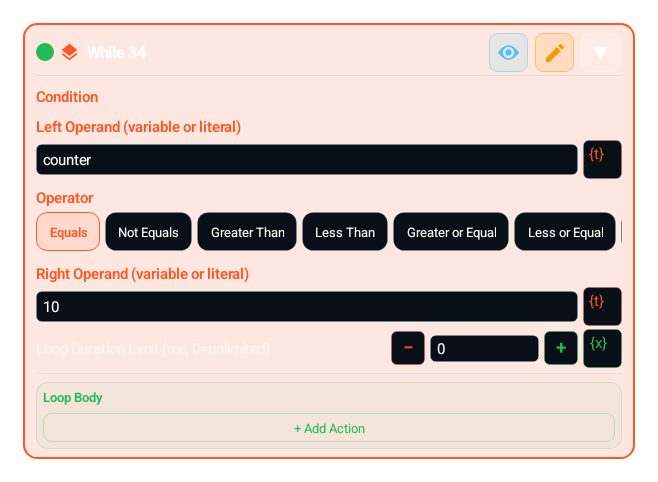
Checks the condition at the start of every pass; while it is true the Loop Body runs, otherwise the loop ends. If it is false from the start, the body never runs. GROUP suits a fixed count, and Repeat Until suits "run first, check after".
Repeat until a counter reaches its target (counter < 10)
Keep working until a status changes (status != "done")
Condition: Left Operand, Operator and Right Operand (the Compare operators)
Loop Duration Limit (ms, 0=unlimited): when it runs out the loop ends with a log line; can be bound with the lightbulb
Wait Before and Wait After apply before and after the whole loop
Include a step that changes the condition in the Loop Body; BREAK leaves early, CONTINUE skips a pass
Left Operand, Operator and Right Operand
The loop ends when the time is up
Once before and after the whole loop
| Parameter | Description |
|---|---|
| Condition | Left Operand, Operator and Right Operand |
| Loop Duration Limit (ms, 0=unlimited) | The loop ends when the time is up |
| Wait Before / Wait After (ms) | Once before and after the whole loop |
SET_VARIABLE: stock = 100
While: stock > 0, Loop Duration Limit 120000
Body: CLICK → WAIT 1000 ms → read stock again with OCR_VALUE
SET_VARIABLE + WHILE: a counter-driven loop
OCR_VALUE + WHILE: decide by watching an on-screen value
WHILE + TRY_CATCH: safely repeat steps that can raise errors
Repeats while a condition is true
If the condition never changes, the loop runs until the duration limit or the 2,000,000-pass safety cap
If CLICK, SWIPE or TOUCH in the body fails on a pass, the macro does not stop: the problem is logged, a short back-off is waited and the rest of the pass still runs; guard dependent steps with a condition
With no wait in the body the app adds a short safety pause between passes; still use WAIT when the screen needs time to change
The same block at three levels: a quick start, the real options, and professional techniques.
WHILE repeats the body blocks as long as the condition is TRUE. Each turn starts by checking the condition; if true the body runs, if false the loop ends and the macro continues from the next block. GROUP repeats a fixed count, while WHILE runs on a dynamic condition — e.g. "counter < 10" or "status != completed". The critical rule: the body must contain a block (usually SET_VARIABLE) that eventually changes the condition, or you get an infinite loop.
You define the condition with COMPARE-style left-value / operator / right-value fields; operators are <, >, <=, >=, ==, !=, contains, not_contains. The "Loop Duration Limit (ms, 0=unlimited)" field (loopDurationCapMs): 0 = unlimited, otherwise the loop auto-stops after that many milliseconds (slider up to 300,000 ms). It is a safety net if your condition unexpectedly never changes. On top of that the generated code has a hard ceiling: after ~2,000,000 turns the loop breaks itself and leaves a "Loop safety limit exceeded (while)" log. Define any variables used in the condition BEFORE the WHILE, otherwise you compare against nil.
Add at least one WAIT per turn — it lowers CPU/heat and gives expensive blocks like OCR/IMAGE room to breathe; a busy loop overheats the device and invites OEM kills. Use two layers of safety: both a logical counter (e.g. turns > 1000 → BREAK) and the time-based ceiling via loopDurationCapMs, because they catch different failure modes. In a WHILE that watches an on-screen value (OCR_VALUE → decide) be robust to read misses: a missed read returning 0 must not falsely trip your condition. Design the loop body to be idempotent; the same condition may persist for several turns so each turn must be safe to repeat. For network or fragile steps wrap the body in TRY_CATCH so a transient error does not sink the whole loop.
Small, reproducible examples that combine several blocks — build them straight into your own macro.
This block is useful on its own — but it shines when paired with the right partners.
Updates the counter/state variable that advances the condition inside the body; this is what keeps WHILE from looping forever.
Adding a delay each turn reduces CPU load, heat, and the risk of an OEM process kill.
Watches a changing on-screen number (score, stock, progress) to decide when the loop should stop.
Provides an early, safe exit on a second condition beyond the main one (e.g. a maximum turn count).
Wraps error-prone steps in the body; a transient error continues without sinking the whole loop.
No block in the body that changes the condition. Fix: update the condition variable with at least one SET_VARIABLE (or OCR_VALUE → SET_VARIABLE) so it eventually becomes false.
No WAIT per turn (busy loop). Fix: add even a short WAIT; otherwise CPU spikes to 100%, the device heats up, and the OEM may kill the loop.
Defining the condition variable after the WHILE. Fix: define it BEFORE the loop with SET_VARIABLE, otherwise the first turn compares against nil.
Trusting only a logical counter and leaving the time cap empty. Fix: also set loopDurationCapMs as a time ceiling against unexpected stalls.
Bind wait fields such as Wait Before and Wait After to a variable with their lightbulbs. Runtime limits still apply.
Coming soonv1.0.51The same lightbulb menu has a Random option: enter two bounds (for example 300 – 800) and the block picks a new wait from that range every time it runs. Runtime limits still apply.
Instead of leaving loopDurationCapMs at 0 (unlimited), give a realistic upper bound (e.g. 120000 ms); your macro will not hang if control escapes.
In nested WHILE loops make sure the inner loop also has its own exit condition and WAIT; one missing exit locks the entire macro.
If a fixed repeat count is enough, use GROUP instead of WHILE; reserve WHILE for genuinely dynamic conditions.
The Lua below is what the Code Editor generates for this block with sample settings. Adding cases, branches, actions or loops, or changing settings, extends the generated code accordingly. Study it to see what the block does under the hood, to learn Lua, or to copy and adapt it. Use the Copy button (top-right) to paste it into the Code Editor, or “Try in Editor →” to run it in the live editor.
local counter = tonumber("0") or 0

local _wh_safe1 = 0
while true do
 _wh_safe1 = _wh_safe1 + 1
 if _wh_safe1 > 2000000 then
  System.log("Loop safety limit exceeded (while)")
  break
 end
 if not ((tonumber(counter) or 0) < 2) then break end
 do
 counter = counter + 1
 ::_cont_2::
 end
 wait(8)
end
::_break_3::
Note: generated code can evolve across versions; helper names (e.g. _reg1, m1) and internal optimizations may change. The logic and the called APIs reflect the block’s behavior.
The guidance below is not identical for every block. It summarizes the professional controls that most often repeat in the selected block family.
Blocks like ERROR_HANDLER and SLEEP_UNTIL strengthen a flow; they should not be used to hide unclear core logic.
Always define an exit scenario and observable bound when using sleep-style waiting conditions.
Global error handling should belong to one policy. Avoid multiple competing error strategies in the same project.
TOUCH and TOUCH_BREAK cover recipe-style touch flows. Raw pointer choreography such as Touch.down, Touch.move, Touch.up, Touch.dispatch, Touch.reset, Touch.breakAll, and Touch.releaseAfter is not exposed as a first-class builder block.
Touch.downTouch.moveTouch.upTouch.dispatchTouch.resetTouch.breakAllTouch.releaseAfterThe DIALOG block and dialog designer cover a bounded field set in the builder: Info Text, Text Input, Checkbox, Description, Radio Group, Dropdown, Multi Select, Tab Group, Date Time, Number Range, Slider, Image Picker, Color Picker, File Picker, Recorder Picker, Tag, Signature, and Spacer. The buttons are designed too: the Positive button and Negative button tabs set each button’s text, background, and border color, corner radius, and minimum height next to a preview. Freer Setting.builder composition, multi-step wizard flows, and mixed HUD/dialog choreography still do not map 1:1 into the builder.
Coming soonv1.0.51Two more fields: Agent Detect references (agent_detect_editor) lets the user pick a saved reference set or add and edit references, and Save confirms the selection; Navigation setup editor (navigation_editor) edits a saved map, marker and route from the Dialog and returns the setup and route selection without moving the character.
Setting.builderDialogHudTextViewAgentDetectEditorNavigationEditorHTTP_GET, HTTP_POST, and HTTP_PUT cover common fixed-method flows; HTTP_REQUEST covers one bounded request with method, header lines, body, content type, query parameters (GET and DELETE), timeout, and a bounded retry. These blocks never throw; they write the status code (-1 on a network failure). Cookie handling, chained request objects, and lower-level client flows still need the code editor.
Request()Request.setCookieRequest.getCookiesCUSTOM_CODEThe MAP, LIST, JSON_PARSE, REGEX_MATCH, and METRICS blocks cover the everyday cases: map actions, a static list, reading a value from a JSON path, regex match, find, replace, and split, and metrics actions. The rest of the Map, Array, JSON, Regex, and Metrics APIs (for example Array sort, filter, and map) is broader than the builder recipe model and stays on the CUSTOM_CODE and code editor side.
MapArrayJSONRegexMetricsRuntime helpers, raw Request objects, Lua built-ins such as print/pcall/xpcall, and free-form object chaining patterns are represented through CUSTOM_CODE or the code editor.
RuntimeRequestprintpcallxpcallCUSTOM_CODEEach block card now exposes an independent breakpoint toggle. When enabled, the breakpoint preference is stored with the block.
Breakpoints are only emitted into runtime code when Debug Mode is enabled from Visual Builder settings. When Debug Mode is off, breakpoints stay saved but do not pause execution.
Use ASSERT for fail-fast validation, and use breakpoints for step-by-step tracing and controlled pauses in the same flow.
Variables defined with SET_VARIABLE are accessible throughout the macro (global scope). All blocks can read/write the same variable.
However, a variable defined inside a GROUP will be 'nil' (undefined) until the GROUP executes. Blocks outside the GROUP using this variable may produce unexpected results.
FOR_EACH loop variables (item and index) only carry valid values inside the loop body. Outside the loop they are outside local scope and should not be used.
TRY_CATCH error variable is only valid within the catch block. If the try block succeeds, the catch branch is not entered and the error variable remains undefined.
TIP: Before using a variable inside a GROUP, assign a default value with SET_VARIABLE outside the GROUP. This way the variable won't be nil even if the GROUP has not run.
You can embed variable values and calculations into text fields using {{ expression }} syntax. Expressions inside double curly braces are evaluated as Lua code and the result is inserted into the text.
{{ expression }}Skor: {{ score + 1 }} → "Skor: " .. tostring(score + 1){{ name }} kazandı! → tostring(name) .. " kazandı!"X:{{ x }} Y:{{ y }} → "X:" .. tostring(x) .. " Y:" .. tostring(y)Expressions are checked by the sandbox policy. Security-sensitive calls like loadstring, require, debug are automatically blocked.
Keep scan regions as small as possible — improves speed, reduces false matches.
Always add an exit condition when using infinite loops (BREAK, timeout, or conditional exit).
Use network operations and error-prone steps inside TRY_CATCH.
If you need global error handling, use the Error Handler (ERROR_HANDLER) block as a singleton in the project.
Small coordinate offsets (CLICK/SWIPE) improve tap accuracy across different DPI and screen scales.
Customize macros with Dialog block — different parameters each run.
Define repeating steps once with GROUP_CALL, call from many places.
Cross-macro local library
The Local Shared Macro Area moves blocks, variables, dialog fields, gallery assets, and imported media dependencies between macros on the same device. It is device-local, not cloud sync, not Firebase sharing, and not a replacement for public macro sharing.
Professional usage model: put a reusable login flow, common scan region, shared dialog form, variable group, template image, color profile, replay recording, or imported PLAY_SOUND media file into the shared area from one macro, then import it from the relevant + menu in another macro.
VISUAL_BLOCKSVARIABLESDIALOG_FIELDSTEMPLATE_IMAGECOLOR_SWATCHREPLAY_RECORDMEDIA_FILEWhen one item or a multi-selection is active, the shared-area button can copy the selected part from the workspace, group, true/false action branch, dialog, and variables surfaces into the device-local library.
The shared-area entry under the + menu imports the selected item into the surface that opened it. Main workspace, group, action branch, dialog, and variables each receive the compatible item type.
Gallery items include template images, color swatches, replay records, and imported audio/media files. They can move between macros on the same device so repeated templates, colors, recordings, and PLAY_SOUND media assets do not need to be captured again.
The shared area is not a permanent dumping ground. Delete stale shared items from the shared-library panel; imports create a copy in the target macro and do not rewrite the source macro flow.
AI assistant
Tell MH AI what you want in plain language; it proposes the right block sequence and lands it in the workspace after you approve. In the current release it works with cloud providers such as Gemini, Claude, and OpenAI; on-device local models are on the roadmap.