
1
Send to the shared area
When one item or a multi-selection is active, the shared-area button can copy the selected part from the workspace, group, true/false action branch, dialog, and variables surfaces into the device-local library.
No-Code Workspace — Block Reference
Learns work you show; takes it over as an approved Routine or reviewed plan, also inside a macro
Documented for app version 1.0.51 (not on Google Play yet)Updated:
Block Preview
Captured from the in-app Visual Builder block card in the English UI.
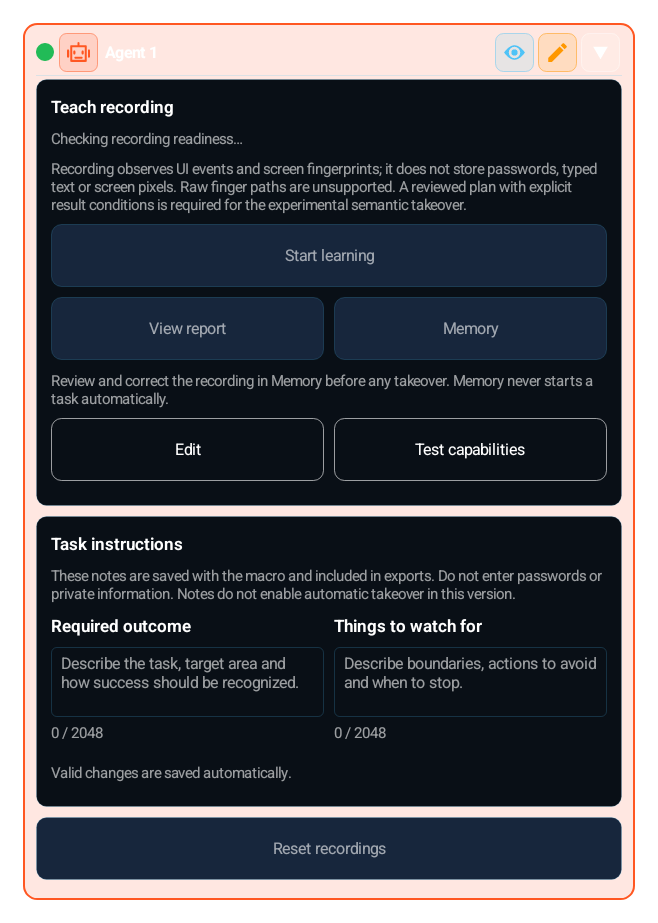
The Agent card records a demonstration after permissions and consent and keeps a Stop control visible. For apps with accessible controls, review the recording in Memory and approve a plan. For games, build a Routine whose targets are Agent Detect blocks: rehearse it without tapping, approve it, then take it over from the card or let the macro run it when it reaches the block. Plans, routines and their revisions are stored encrypted on the device.
Use it for repetitive work you can show: tapping every enemy until none is left, collecting loot, closing a popup, or a short sequence on identifiable app controls.
Teach an Agent Detect block for each target (turn it off if it is only a target).
On the Agent card open Routine → Edit: add targets, pick a recipe, choose the app and save.
Rehearse to see what it would tap, then Approve.
Take over from the card, or add the block to a macro and choose what happens if the task does not complete.
Start the macro and give the one consent; branch on agent_ok afterwards.
A task note saved for review; it does not compile natural language into a program.
User notes to consider during plan review.
Define the result of each supported step. Editing a plan requires fresh approval.
Targets (Agent Detect blocks), steps, unexpected situations and limits; Rehearse and Approve make it ready to run.
Tap, Wait for, If seen, Pause, Repeat and App element tap. Every tap finds its target again on a fresh frame and needs a Result check; Repeat ends at None left, when A condition is seen or after a Number of rounds.
Up to 4 guards; each watches for a target such as a popup and, when it is seen, taps it, waits for you or stops.
Maximum time defaults to 15 minutes and Maximum taps to 300. A routine holds up to 8 targets, 48 steps and 4 guards; a run stopped by a limit does not count as completed.
If the task does not complete, stop the macro or continue with the result in agent_ok. The permission to start without asking is for schedules, triggers and other macros.
The optional “Also record my taps (games)” box in the Start learning panel is off by default and chosen for each recording. Your taps reach the Agent first and pass to the app when you lift your finger: each tap is delayed by its press time, and a held joystick or multi-finger move plays on release. Recording stops while a keyboard is open, another app is in front, the screen rotates or a password field is focused.
Values the blocks after it can read: agent_ok, agent_outcome, agent_taps, agent_detail.
| Parameter | Description |
|---|---|
| Required outcome | A task note saved for review; it does not compile natural language into a program. |
| Precautions | User notes to consider during plan review. |
| Expected result and approval | Define the result of each supported step. Editing a plan requires fresh approval. |
| Routine | Targets (Agent Detect blocks), steps, unexpected situations and limits; Rehearse and Approve make it ready to run. |
| Steps | Tap, Wait for, If seen, Pause, Repeat and App element tap. Every tap finds its target again on a fresh frame and needs a Result check; Repeat ends at None left, when A condition is seen or after a Number of rounds. |
| Unexpected situations | Up to 4 guards; each watches for a target such as a popup and, when it is seen, taps it, waits for you or stops. |
| Limits | Maximum time defaults to 15 minutes and Maximum taps to 300. A routine holds up to 8 targets, 48 steps and 4 guards; a run stopped by a limit does not count as completed. |
| In the macro | If the task does not complete, stop the macro or continue with the result in agent_ok. The permission to start without asking is for schedules, triggers and other macros. |
| Teach: game taps | The optional “Also record my taps (games)” box in the Start learning panel is off by default and chosen for each recording. Your taps reach the Agent first and pass to the app when you lift your finger: each tap is delayed by its press time, and a held joystick or multi-finger move plays on release. Recording stops while a keyboard is open, another app is in front, the screen rotates or a password field is focused. |
| Outputs | Values the blocks after it can read: agent_ok, agent_outcome, agent_taps, agent_detail. |
Teach a Goblin target, choose Clear all, rehearse and approve. In a looping macro the Agent block clears the goblins on every loop, agent_ok tells whether it completed, and the macro moves on to the next area.
Pair it with Agent Detect for its targets, Compare on agent_ok and agent_outcome, and Swipe or Touch blocks to move between areas. Stopping the macro stops the Agent, and the Agent’s Stop stops the macro.
Learns work you show; takes it over as an approved Routine or reviewed plan, also inside a macro
Routine steps tap or long-press: swipe, drag, joystick and BACK steps are not supported yet. Missing evidence, ambiguous or changed targets, or an edited plan block execution until you review and approve again. Routines need you to be signed in (a routine is bound to your account and to this block), the accessibility service to be on, screen capture permission to be granted and the routine’s app to be installed. Each macro start needs a person’s consent within one minute unless you allow starts without asking, and a Stop pauses those starts. Routines stay on this device: macro export, sharing and transfer do not include them.
The same block at three levels: a quick start, the real options, and professional techniques.
The Agent learns a task you show and can take it over. Describe the task and precautions on the Agent card; notes are not executable instructions. For apps with accessible controls, Start learning records a demonstration that you review in Memory as a plan. For games, build a Routine: each target is an Agent Detect block taught with references, and the steps are typed sentences such as tap when seen or repeat until none is left.
Routine: open Edit, add targets, pick a recipe (Clear all, Tap when seen, Tap in order), choose the app and save. Rehearse runs the saved revision without tapping and shows what it would tap; Approve takes rehearsed items or your explicit acknowledgement. Create from recording turns a Teach recording with recorded taps into an unsaved draft. Take over asks for separate per-run consent. For a reviewed app plan, set each step’s expected result in Memory, approve and save the plan, then review takeover.
Every Routine tap finds its target again on a fresh frame, checks protected areas and the foreground app, and verifies the result afterwards; recorded coordinates are never replayed. A target knocked back by a hit is tapped again only while the detector kept following the same instance, and a skipped target gets one bounded second chance before the routine counts none left. Editing drops approval; rehearsals are tied to content and target pins. Runs never change the plan; feedback does not automatically approve or execute a new plan.
Small, reproducible examples that combine several blocks — build them straight into your own macro.
This block is useful on its own — but it shines when paired with the right partners.
Inspect before/after observations and evidence gaps. Observation count is not successful task count.
Correct result conditions or restore an earlier plan as an unapproved draft, then review and approve it again.
Each Routine target is an Agent Detect block of the same macro. Teach it with positive and negative references and check it in its test panel before binding it.
Branch on agent_ok, agent_outcome, agent_taps and agent_detail after the Agent block. With Continue the macro, a task that did not complete still reaches the next block.
Stopping the macro stops the Agent, and the Agent’s Stop (live panel, holding Volume-Down, MH-AI Stop) stops the macro. After such a Stop, starts without asking wait until you start the macro yourself once.
Reaching Agent in a macro runs its approved routine or plan only after the macro-start consent; an unfinished task stops the macro unless the block says continue.
In visual-only games the reviewed plan finds no accessible target; use a Routine whose targets are Agent Detect blocks. Swipe, drag, joystick and BACK are not Routine steps yet: do them with Swipe or Touch blocks next to the Agent block in the macro loop.
Incomplete evidence, a changed account, an ambiguous target, or an edited plan cannot run under old approval. Review the recording and conditions, and teach again when needed.
An enabled target block also runs as its own block in the macro; turn off Agent Detect blocks that only serve as Routine targets.
Treating a run that hit Maximum time or Maximum taps as finished. It does not count as completed, so the macro stops unless the block is set to continue. Raise the limit or split the task into smaller routines.
Expecting the routine to travel with the macro. A macro ZIP export or transfer carries the Agent Detect target blocks and their references, but not the routine or its approval; on the other device, build the routine again in Routine → Edit, rehearse it and approve it.
Recording joystick moves or drags and expecting them in the routine. The routine draft includes taps and long presses only; for movement, put Swipe or Touch blocks next to the Agent block.
Each row starts with the message the app shows or the block’s output, followed by what to do.
Start with one reversible test step. Do not include payment, deletion, or permission-changing steps in this trial; keep the visible Stop control available.
After the Agent block, agent_ok is true for completed, completed_with_skips and completed_unverified; agent_outcome can also read limit_reached, no_progress, paused_out, stopped_safety, interrupted, failed, aborted or refused (the Agent could not start); agent_taps counts the taps and agent_detail names the limit, situation or refusal code. A Stop by the user always stops the macro.
An unsaved Routine draft survives the editor closing: Edit opens it again and Discard changes deletes it. The live panel opens where and as you left it for each routine and orientation.
Step and limit ranges: Taps per target 1–5 (default 1), Extra scans if not found 0–3 (default 1), Repeat up to 1000 rounds (default 100) with Rounds without progress (default 3). Guards: Check every 1000–10000 ms (default 2000), At most per round 1–3 (default 1), At most per run 1–50 (default 10). Limits: Maximum time 1–120 minutes (default 15), Maximum taps 1–2000 (default 300), Failures in a row before stopping 1–10 (default 3), Minimum time between taps 250–5000 ms (default 350), Maximum screen age at a tap 300–1200 ms (default 700), Wait for the app to come back 0–30000 ms (default 15000), Screen capture retries 0–2 (default 1); On a risky screen it waits for you by default.
Screen size, speed and the way a game draws its targets vary, so results can differ between phones and games: rehearse the routine on the phone you will use and keep Stop within reach.
Teach recordings, tap records, plans, routines and run records are stored encrypted on this device; for each Agent block at most the 20 most recent runs and 8 rehearsals are kept (fewer if storage runs short). With “Also record my taps (games)” on, a few frames for teaching targets stay in memory only, for at most 15 minutes after the recording ends; a frame you open to teach a target stays until you save or discard that reference draft. Reset recordings deletes this block’s records, and deleting your account in the app on this device deletes them too (Privacy Policy, Section 3.9).
The Lua below is what the Code Editor generates for this block with sample settings. Adding cases, branches, actions or loops, or changing settings, extends the generated code accordingly. Study it to see what the block does under the hood, to learn Lua, or to copy and adapt it. Use the Copy button (top-right) to paste it into the Code Editor, or “Try in Editor →” to run it in the live editor.
if Navigation and Navigation._observing then error("NAVIGATION_STOP_REQUIRED_BEFORE_SCREEN_ACTION") end
agent_ok, agent_outcome, agent_taps, agent_detail = __mh_agent_run("00000000-0000-4000-8000-000000000001")
The My Agent Routine block generates this line itself. What runs (the approved Routine or reviewed plan) and your consent are read from the saved project when the macro starts, never from the script; a hand-written or edited __mh_agent_run call is not admitted, answers refused with NO_CONSENT and stops the macro. Do not copy this line into another script.
Note: generated code can evolve across versions; helper names (e.g. _reg1, m1) and internal optimizations may change. The logic and the called APIs reflect the block’s behavior.
The guidance below is not identical for every block. It summarizes the professional controls that most often repeat in the selected block family.
Blocks like ERROR_HANDLER and SLEEP_UNTIL strengthen a flow; they should not be used to hide unclear core logic.
Always define an exit scenario and observable bound when using sleep-style waiting conditions.
Global error handling should belong to one policy. Avoid multiple competing error strategies in the same project.
TOUCH and TOUCH_BREAK cover recipe-style touch flows. Raw pointer choreography such as Touch.down, Touch.move, Touch.up, Touch.dispatch, Touch.reset, Touch.breakAll, and Touch.releaseAfter is not exposed as a first-class builder block.
Touch.downTouch.moveTouch.upTouch.dispatchTouch.resetTouch.breakAllTouch.releaseAfterThe DIALOG block and dialog designer cover a bounded field set in the builder: Info Text, Text Input, Checkbox, Description, Radio Group, Dropdown, Multi Select, Tab Group, Date Time, Number Range, Slider, Image Picker, Color Picker, File Picker, Recorder Picker, Tag, Signature, and Spacer. The buttons are designed too: the Positive button and Negative button tabs set each button’s text, background, and border color, corner radius, and minimum height next to a preview. Freer Setting.builder composition, multi-step wizard flows, and mixed HUD/dialog choreography still do not map 1:1 into the builder.
Coming soonv1.0.51Two more fields: Agent Detect references (agent_detect_editor) lets the user pick a saved reference set or add and edit references, and Save confirms the selection; Navigation setup editor (navigation_editor) edits a saved map, marker and route from the Dialog and returns the setup and route selection without moving the character.
Setting.builderDialogHudTextViewAgentDetectEditorNavigationEditorHTTP_GET, HTTP_POST, and HTTP_PUT cover common fixed-method flows; HTTP_REQUEST covers one bounded request with method, header lines, body, content type, query parameters (GET and DELETE), timeout, and a bounded retry. These blocks never throw; they write the status code (-1 on a network failure). Cookie handling, chained request objects, and lower-level client flows still need the code editor.
Request()Request.setCookieRequest.getCookiesCUSTOM_CODEThe MAP, LIST, JSON_PARSE, REGEX_MATCH, and METRICS blocks cover the everyday cases: map actions, a static list, reading a value from a JSON path, regex match, find, replace, and split, and metrics actions. The rest of the Map, Array, JSON, Regex, and Metrics APIs (for example Array sort, filter, and map) is broader than the builder recipe model and stays on the CUSTOM_CODE and code editor side.
MapArrayJSONRegexMetricsRuntime helpers, raw Request objects, Lua built-ins such as print/pcall/xpcall, and free-form object chaining patterns are represented through CUSTOM_CODE or the code editor.
RuntimeRequestprintpcallxpcallCUSTOM_CODEEach block card now exposes an independent breakpoint toggle. When enabled, the breakpoint preference is stored with the block.
Breakpoints are only emitted into runtime code when Debug Mode is enabled from Visual Builder settings. When Debug Mode is off, breakpoints stay saved but do not pause execution.
Use ASSERT for fail-fast validation, and use breakpoints for step-by-step tracing and controlled pauses in the same flow.
Variables defined with SET_VARIABLE are accessible throughout the macro (global scope). All blocks can read/write the same variable.
However, a variable defined inside a GROUP will be 'nil' (undefined) until the GROUP executes. Blocks outside the GROUP using this variable may produce unexpected results.
FOR_EACH loop variables (item and index) only carry valid values inside the loop body. Outside the loop they are outside local scope and should not be used.
TRY_CATCH error variable is only valid within the catch block. If the try block succeeds, the catch branch is not entered and the error variable remains undefined.
TIP: Before using a variable inside a GROUP, assign a default value with SET_VARIABLE outside the GROUP. This way the variable won't be nil even if the GROUP has not run.
You can embed variable values and calculations into text fields using {{ expression }} syntax. Expressions inside double curly braces are evaluated as Lua code and the result is inserted into the text.
{{ expression }}Skor: {{ score + 1 }} → "Skor: " .. tostring(score + 1){{ name }} kazandı! → tostring(name) .. " kazandı!"X:{{ x }} Y:{{ y }} → "X:" .. tostring(x) .. " Y:" .. tostring(y)Expressions are checked by the sandbox policy. Security-sensitive calls like loadstring, require, debug are automatically blocked.
Keep scan regions as small as possible — improves speed, reduces false matches.
Always add an exit condition when using infinite loops (BREAK, timeout, or conditional exit).
Use network operations and error-prone steps inside TRY_CATCH.
If you need global error handling, use the Error Handler (ERROR_HANDLER) block as a singleton in the project.
Small coordinate offsets (CLICK/SWIPE) improve tap accuracy across different DPI and screen scales.
Customize macros with Dialog block — different parameters each run.
Define repeating steps once with GROUP_CALL, call from many places.
Cross-macro local library
The Local Shared Macro Area moves blocks, variables, dialog fields, gallery assets, and imported media dependencies between macros on the same device. It is device-local, not cloud sync, not Firebase sharing, and not a replacement for public macro sharing.
Professional usage model: put a reusable login flow, common scan region, shared dialog form, variable group, template image, color profile, replay recording, or imported PLAY_SOUND media file into the shared area from one macro, then import it from the relevant + menu in another macro.
VISUAL_BLOCKSVARIABLESDIALOG_FIELDSTEMPLATE_IMAGECOLOR_SWATCHREPLAY_RECORDMEDIA_FILEWhen one item or a multi-selection is active, the shared-area button can copy the selected part from the workspace, group, true/false action branch, dialog, and variables surfaces into the device-local library.
The shared-area entry under the + menu imports the selected item into the surface that opened it. Main workspace, group, action branch, dialog, and variables each receive the compatible item type.
Gallery items include template images, color swatches, replay records, and imported audio/media files. They can move between macros on the same device so repeated templates, colors, recordings, and PLAY_SOUND media assets do not need to be captured again.
The shared area is not a permanent dumping ground. Delete stale shared items from the shared-library panel; imports create a copy in the target macro and do not rewrite the source macro flow.
AI assistant
Tell MH AI what you want in plain language; it proposes the right block sequence and lands it in the workspace after you approve. In the current release it works with cloud providers such as Gemini, Claude, and OpenAI; on-device local models are on the roadmap.