No-code Quick Start
Build your first macro in 7 steps
No code required. The IMAGE + CLICK + DELAY trio that taps a button on screen, repeated. For full per-block details see the Visual Builder Guide.
Clean quick path
The three critical places in the first macro
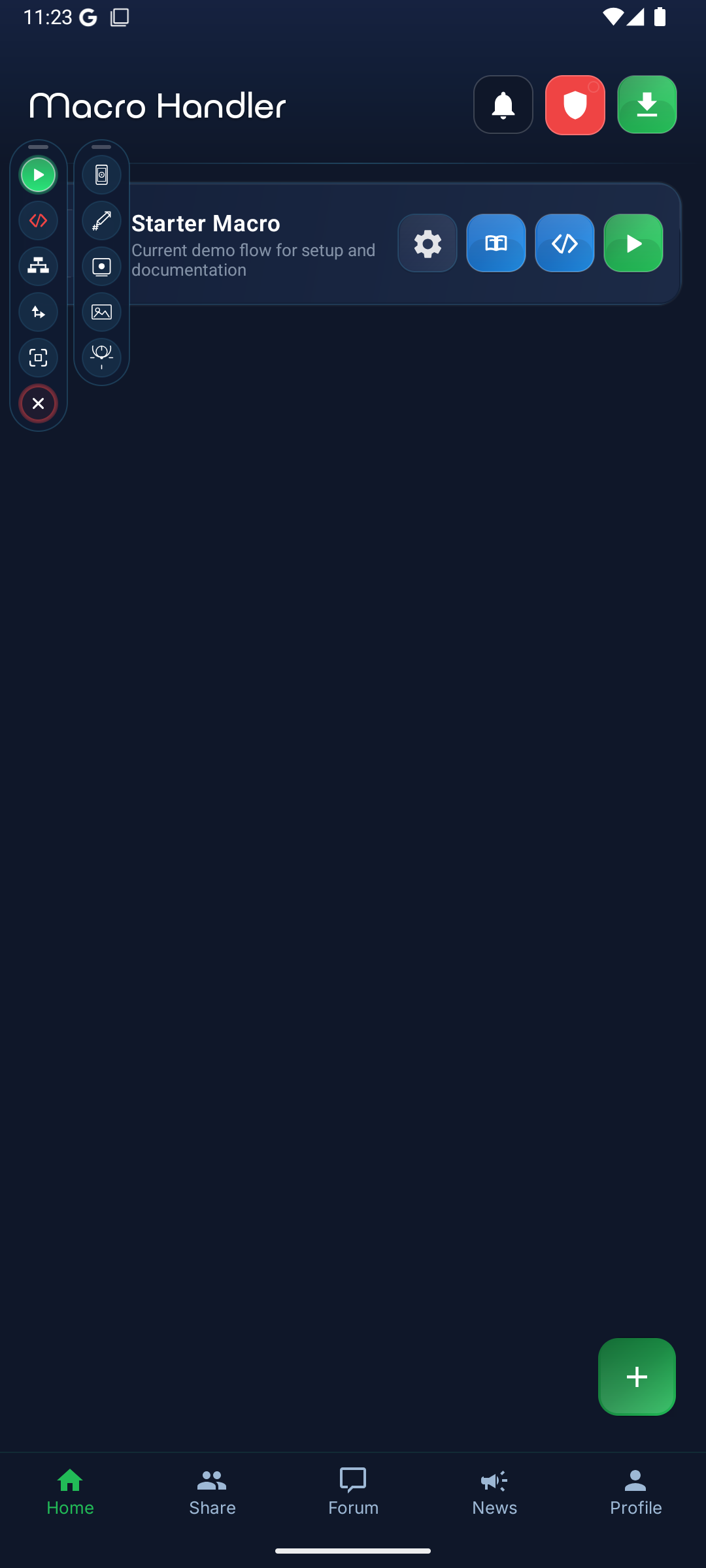
A new user must understand the target image first, then the tight scan region, and finally the CLICK step connected to the found result. The clean screenshot shows that flow on the real no-code screen without overlays.
Open Macro Handler
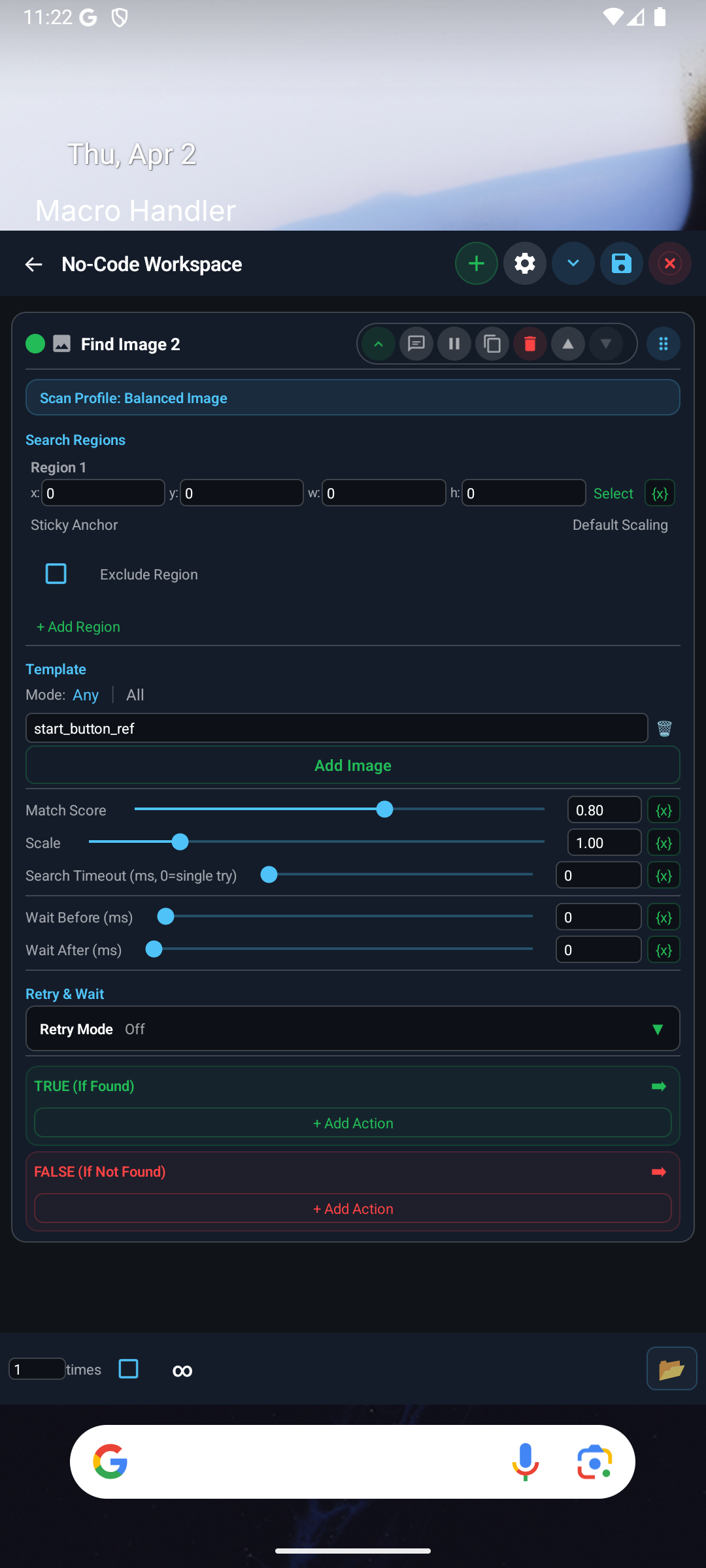
Open the app and complete the setup wizard: Welcome, Age, Privacy Policy, Terms of Service, EULA and the permission pages. The wizard runs only once; later launches skip it.
PrerequisiteDisplay Over Apps and Accessibility must be granted; on Android 7–10, Screen Capture is needed too. Without them the Image, Color and Text blocks cannot read the screen.Welcome
Create a New Macro
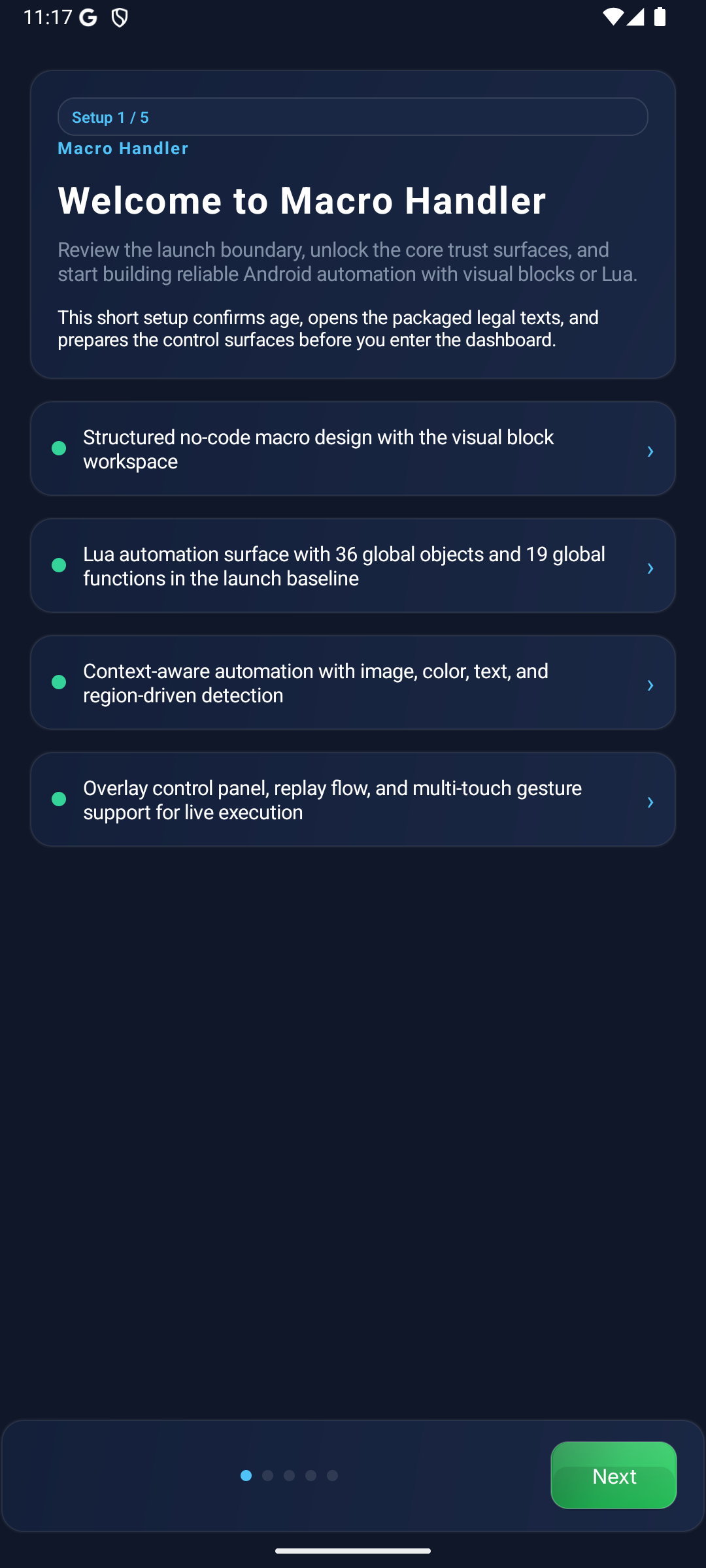
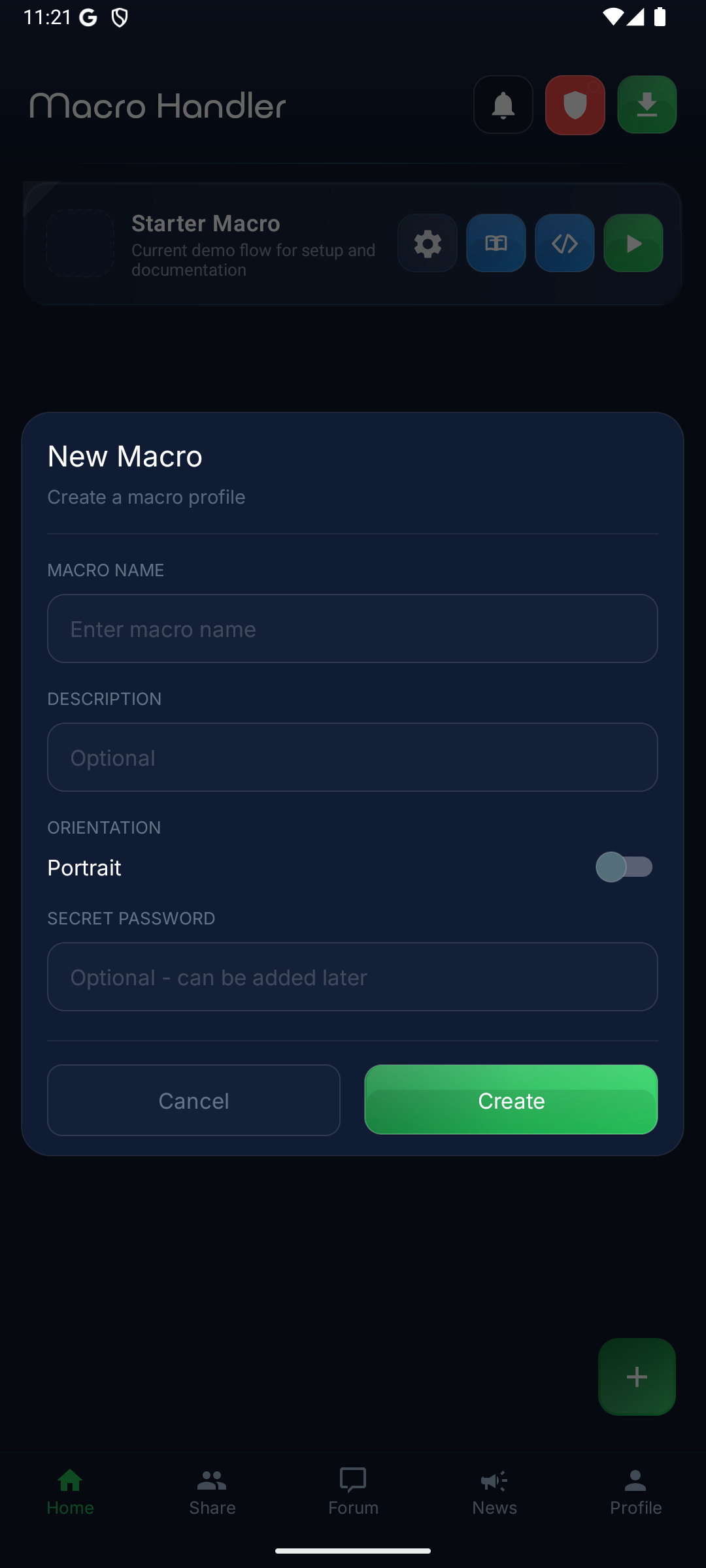
Tap "+" at the top right of the Home screen, give the macro a name and create it. Then open the No-Code Workspace from the macro card; you will see an empty block list.
Dashboard
New Macro
Add an IMAGE Block
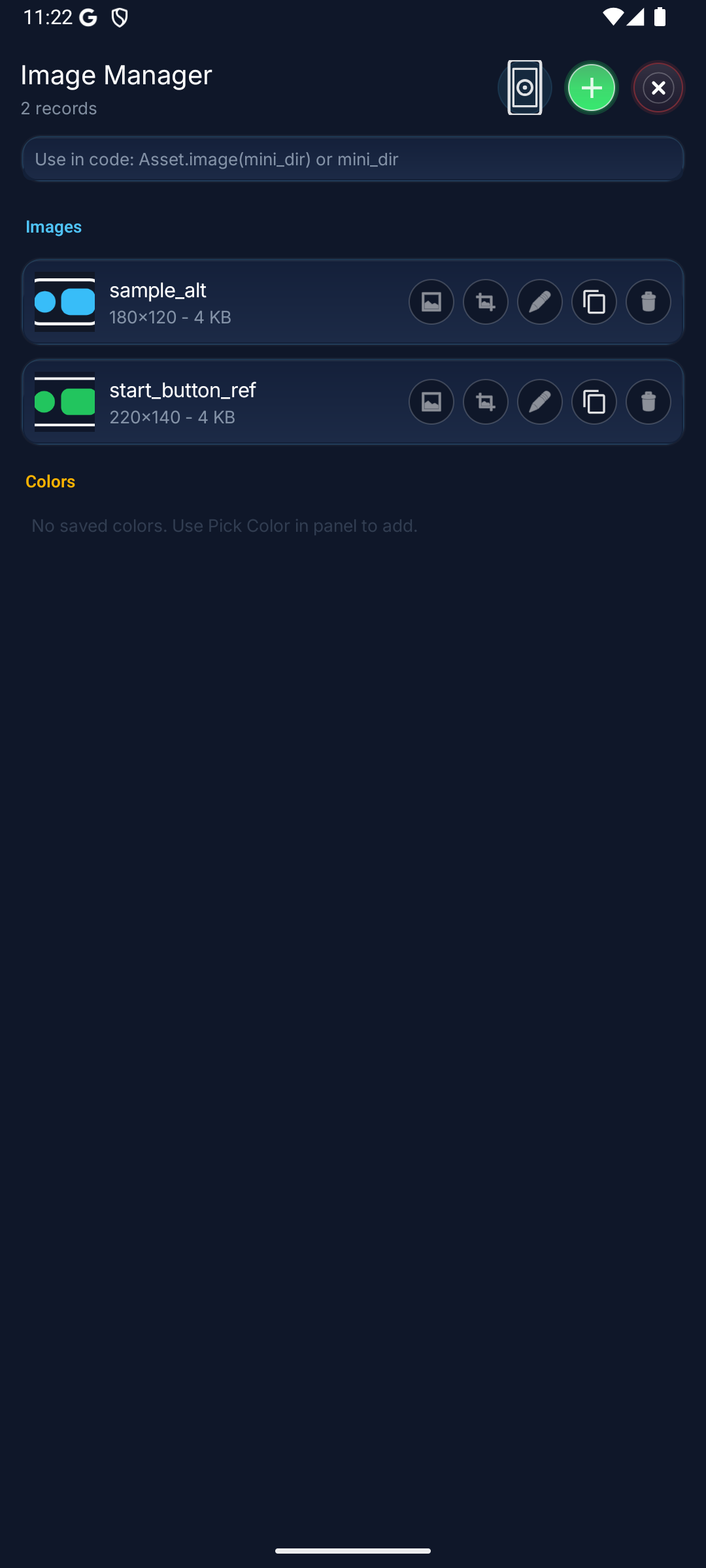
From the left/bottom block palette, drag an IMAGE block under the start node. Select the Template field and capture from the screen: outline the target button / icon as a small region.
IMAGEFinds where a template image is on screen. Records the position when found; returns false otherwise.
Performance tipKeep the Scan Region as NARROW as possible. Scan time grows roughly linearly with area.IMAGE Flow
Template Gallery
Block Preview
Current in-app block card for the IMAGE block.
English UI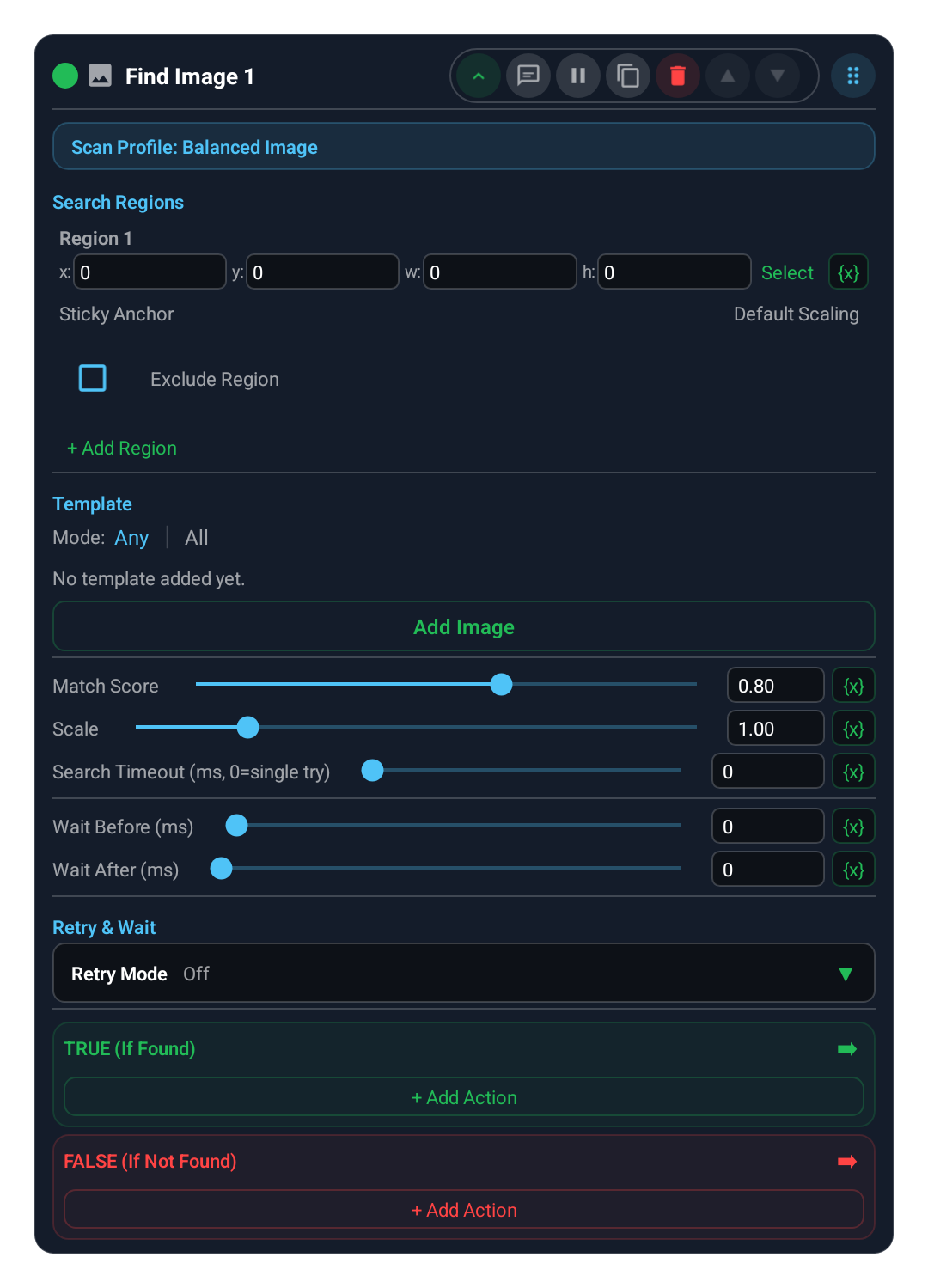
Add a CLICK Block
Drag a CLICK block under the IMAGE block's "true" branch (target found). Set its target to "Last IMAGE hit". CLICK now taps where the IMAGE block found the target.
CLICKPerforms a single tap on a coordinate or the last find hit.
Block Preview
CLICK block card showing tap target options for a coordinate or last hit.
English UI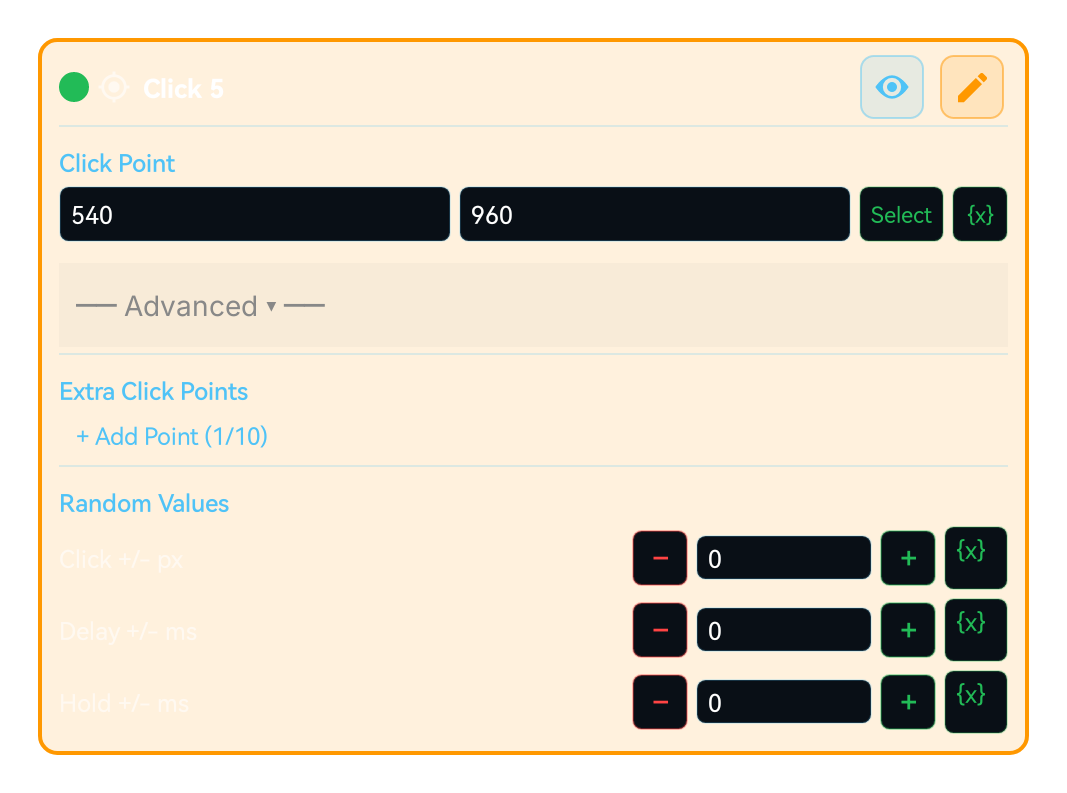
Add a DELAY Block
After CLICK the macro should pause briefly; otherwise later scans hit a screen that has not redrawn yet. Drag a DELAY block under CLICK and set 500-800 ms.
DELAYPauses the macro for the given number of milliseconds.
Block Preview
WAIT/DELAY block card for defining the pause duration.
English UI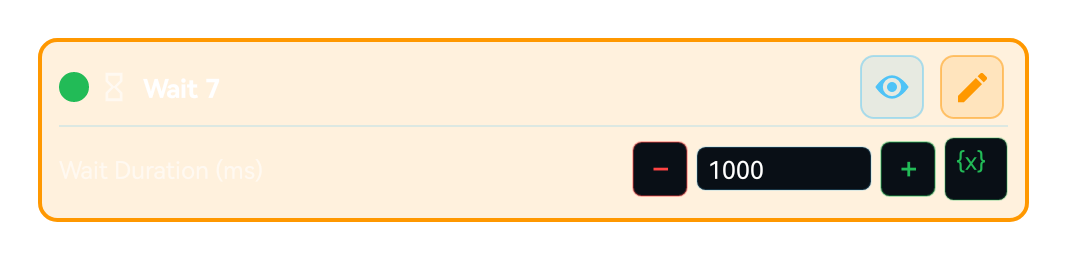
Repeat with LOOP (optional)
If you want the macro to run continuously, place a LOOP block at the root and put the IMAGE+CLICK+DELAY chain inside it. Choose a repeat count or infinite.
LOOPRepeats the contained block chain a given number of times or infinitely.
Block Preview
GROUP block card showing loop settings for repeating the IMAGE + CLICK + DELAY chain.
English UI
Save and Run
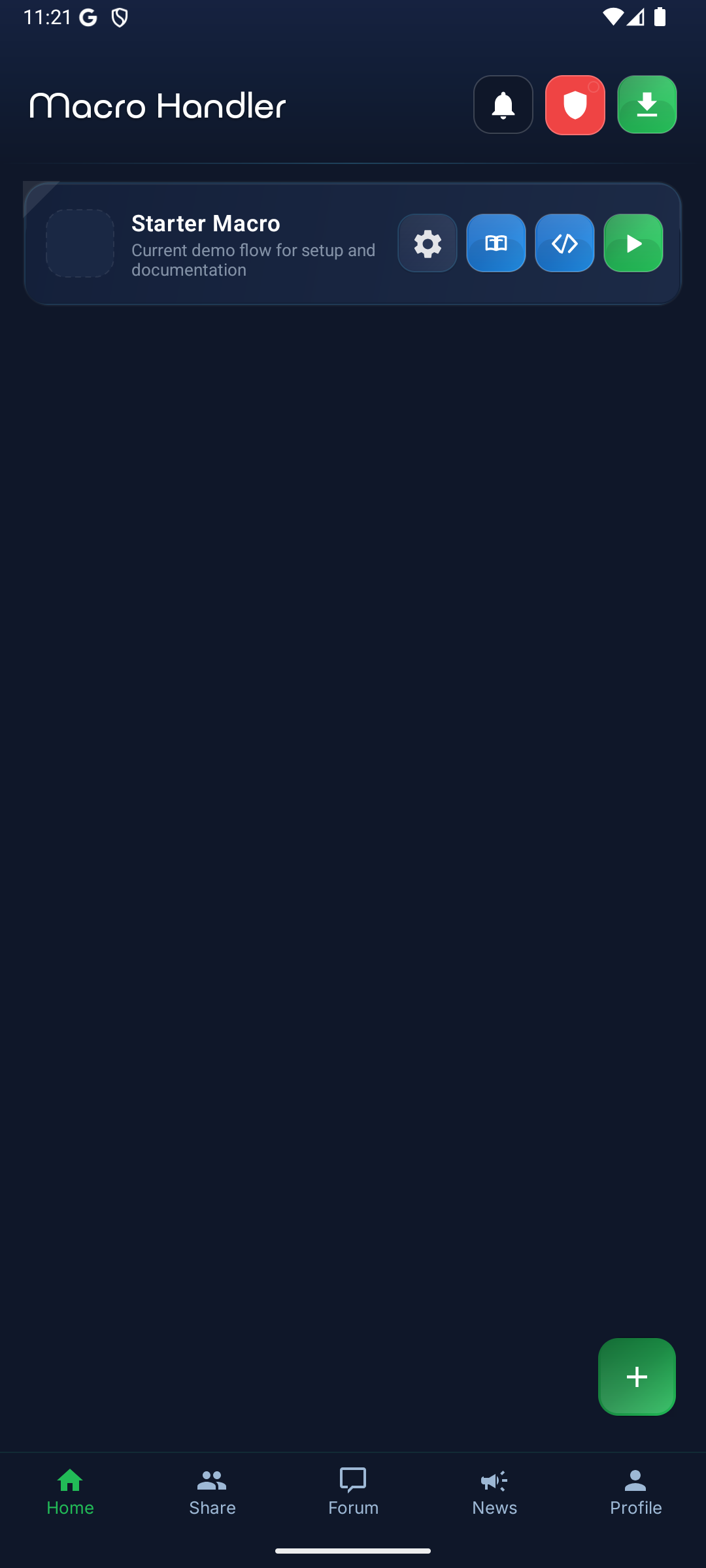
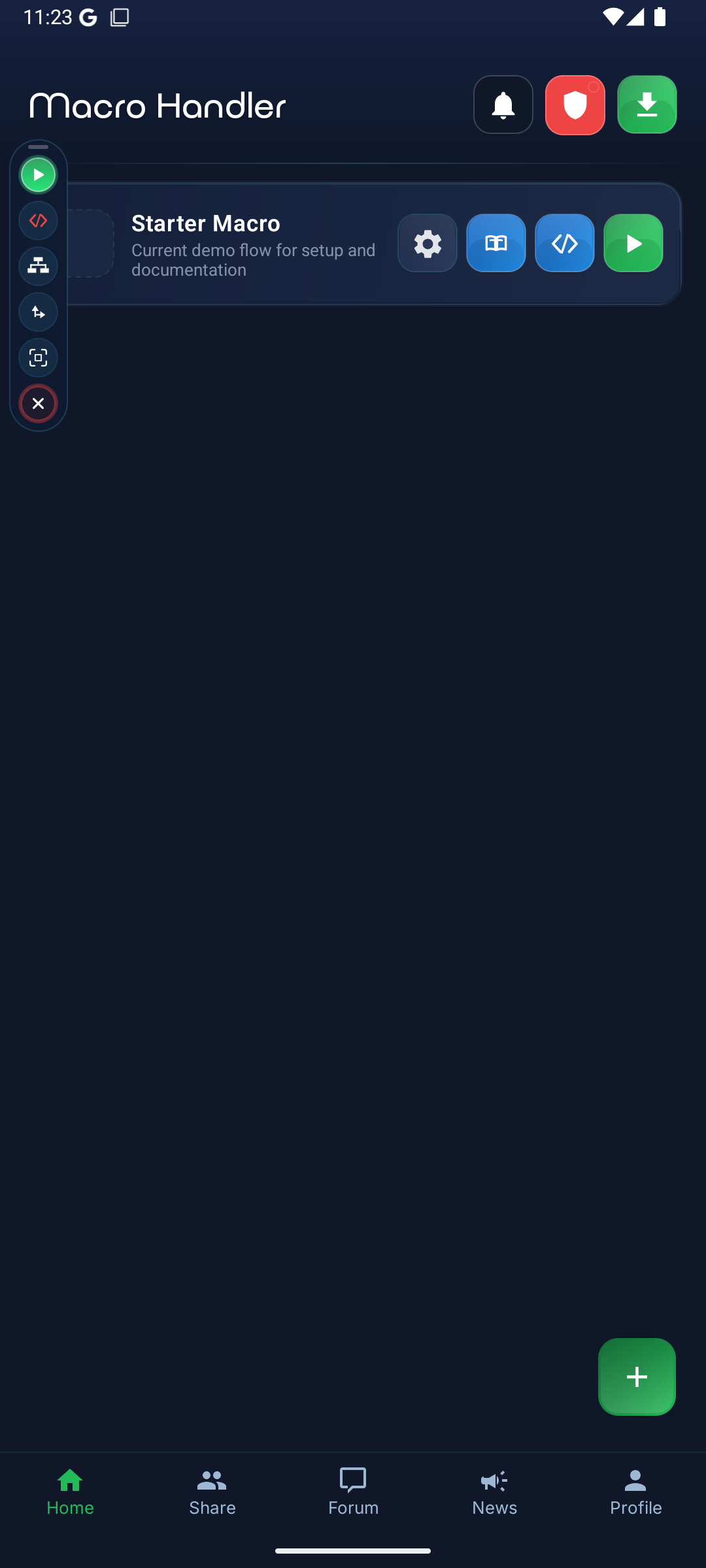
Save the project. Return to the Home screen, select the macro from the list and run it. The control panel appears on screen: stop the macro with its Stop button; holding volume-down works as an emergency stop.
If something failsEnable Debug Mode in the No-Code Workspace settings and place a breakpoint on the IMAGE block. The marked block is highlighted as it runs, so you can see where the flow stops. The Macro flow log on the control panel also shows every step and what each scan found.Main Panel
Helper Panel