
Get Started
Setup and First Steps
A step-by-step guide to install Macro Handler and run your first macro. Permissions, setup, and first-run flow in one place.
Install from Google Play
After installing, the app’s first-run screens and this guide take you through permissions and the first run.

First-run visual map
First-run learning map: from setup to first macro
A first-time user learns what the product does on the welcome screen, which system permissions are required on the permission panel, and where to create the first macro on the dashboard.
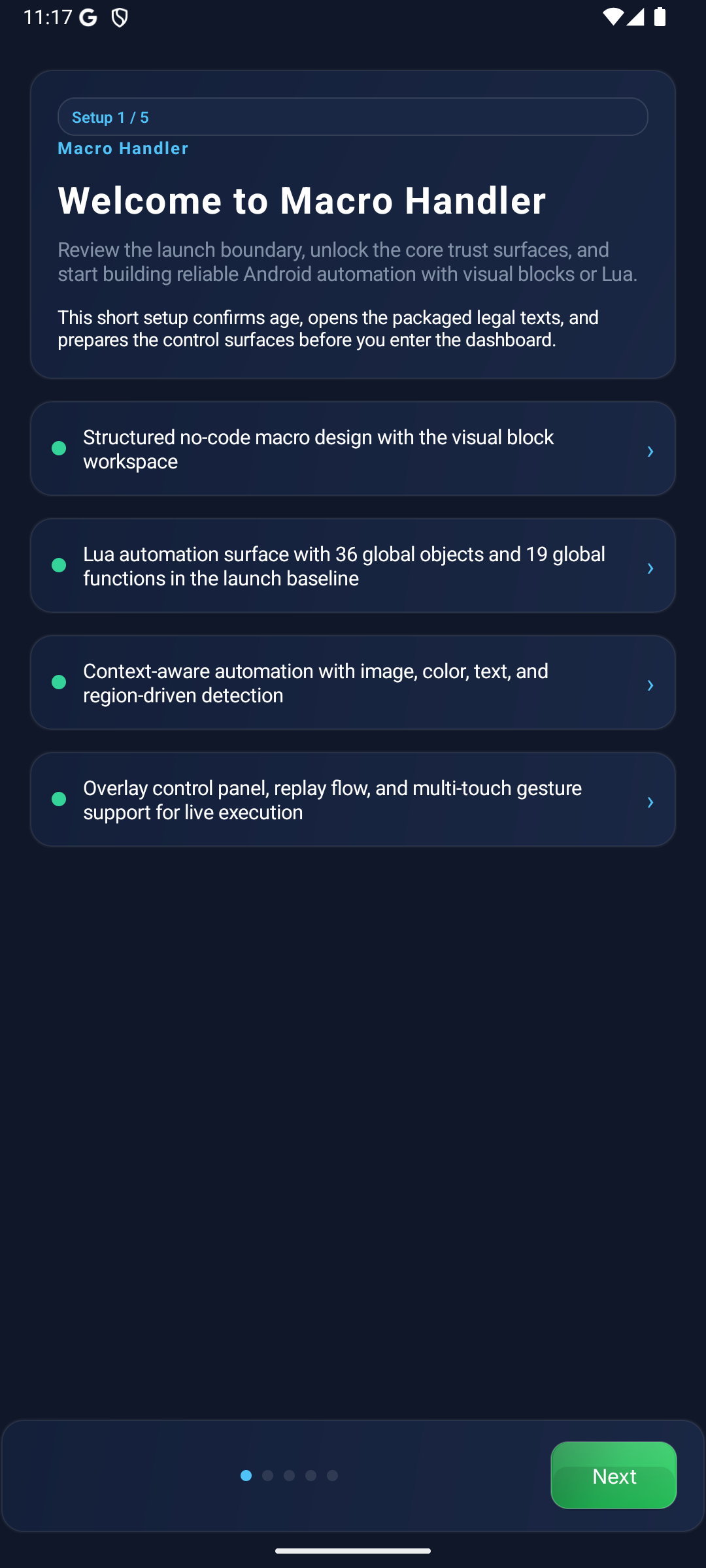
First-run learning map: welcome
The first screen connects product scope, the start decision, and the next setup steps for the user.
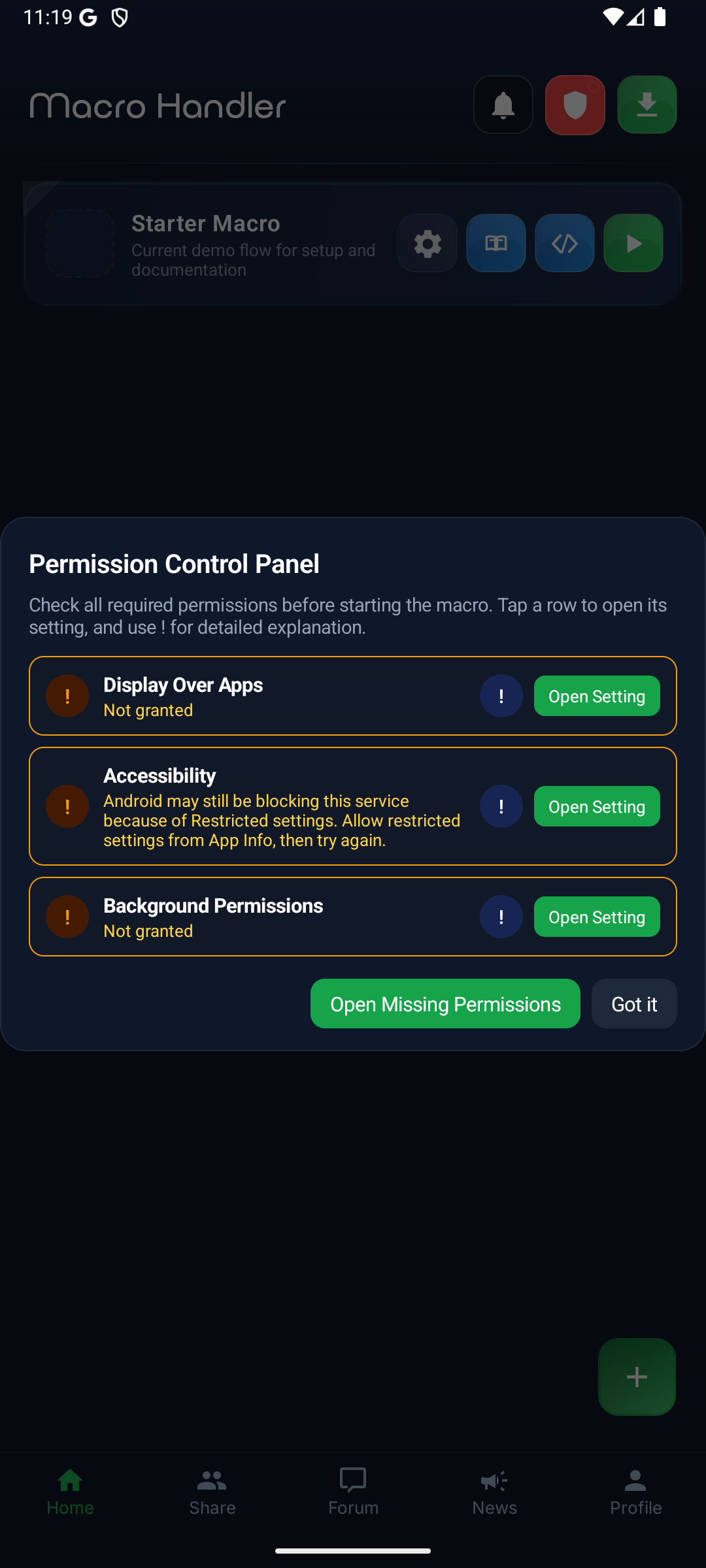
First-run learning map: permissions
The permission screen teaches the system rights required for macros to see the screen and execute touch actions.
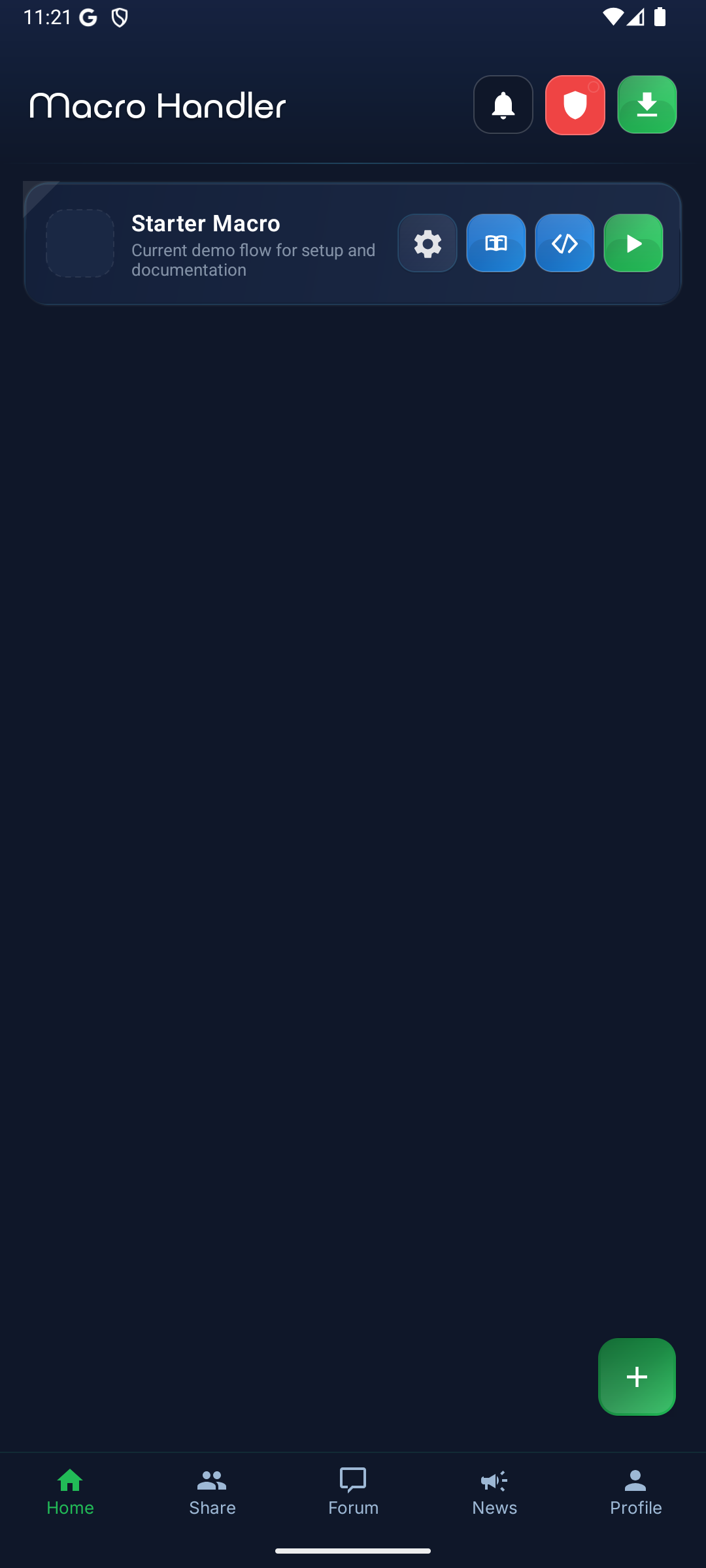
First-run learning map: first macro
The dashboard explains where users see existing macros and which action creates a new macro.
Install the App
Install Macro Handler and open it. The first screen explains what the app does and which setup steps come next; finish permissions and the first run with this guide.
- Structured no-code macro design with the visual block editor
- Lua automation with 800+ API methods and 60 global objects in the launch baseline
- The 800+ API methods claim applies to the default launch Lua runtime. The native Lua 5.4.8 runtime is experimental and not the default yet.
- 70 cataloged OCR locale-routing codes map to 7 OCR recognizer families: Latin, Chinese, Japanese, Korean, Devanagari, Arabic, and Cyrillic. The count shows which recognizer handles each code; it is not independently validated accuracy for 70 languages. Latin, Chinese, Japanese, Korean, and Devanagari use ML Kit recognizer packages; Arabic and Cyrillic use bundled Tesseract data for offline fallback. For scripts outside the listed recognizer families or rapidly changing glyph shapes, prefer template or image flows.
- Operational runtime surface with overlay controls, replay, and managed sharing
Welcome
Age Verification
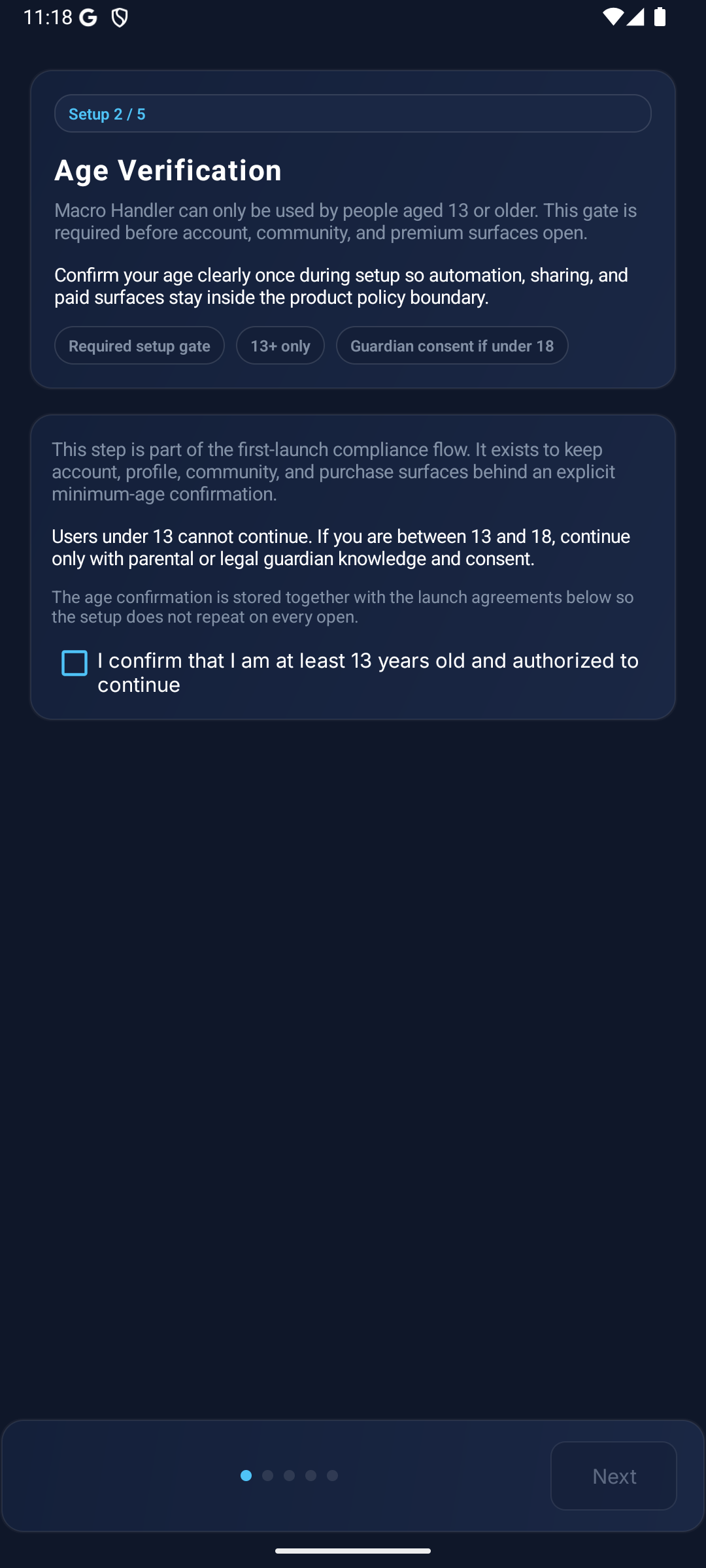
Complete Age Confirmation
On first launch, Macro Handler requires a clear minimum-age confirmation. This step keeps account, community, sharing, and premium surfaces behind an explicit product-policy gate. Users under 13 cannot use the app, and users between 13 and 18 should continue only with parental or legal-guardian knowledge and consent.
- This confirmation is a required part of first launch and is not turned into a repetitive prompt.
- The age confirmation is recorded together with the privacy and product agreements that follow.
- Age confirmation and formal agreement review stay grouped inside one clear first-run sequence.
Accept Agreements
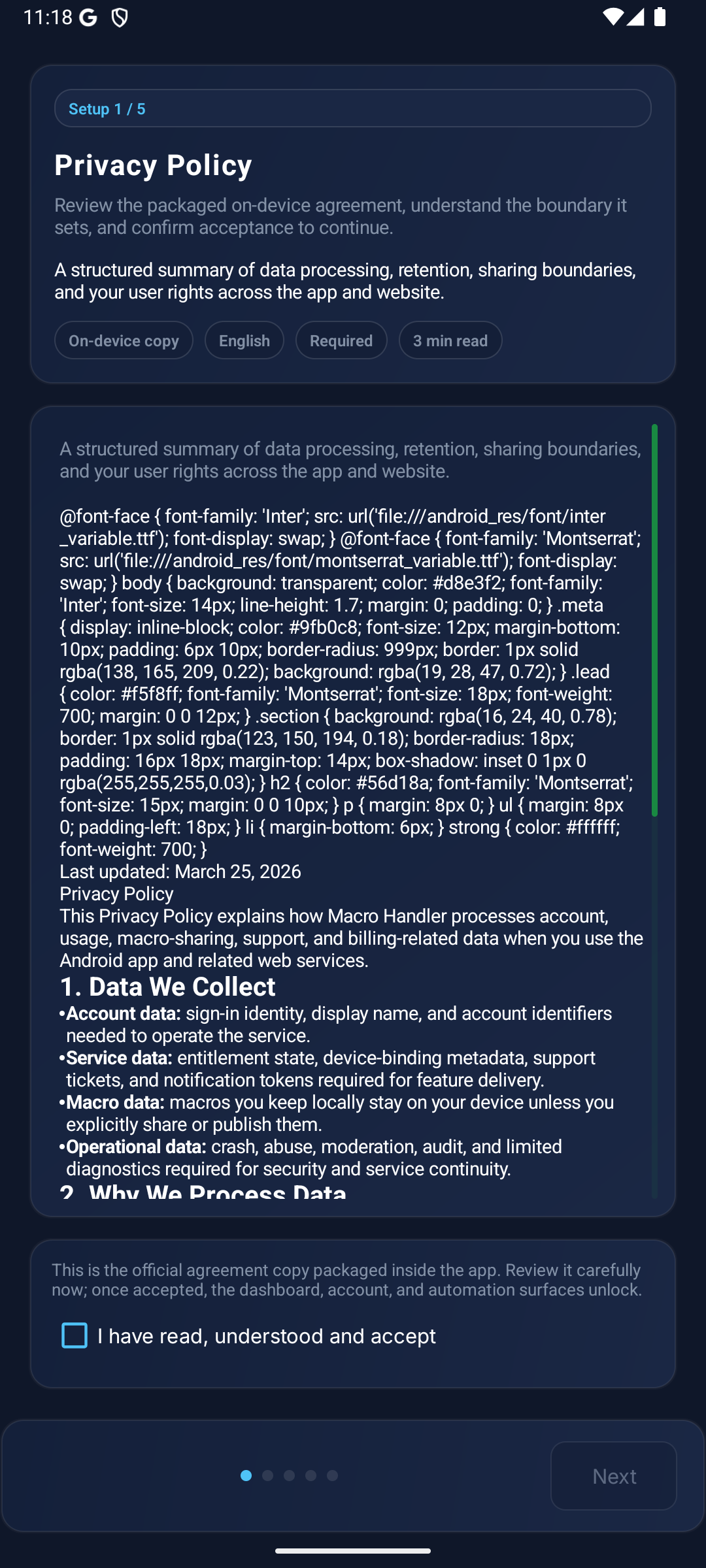
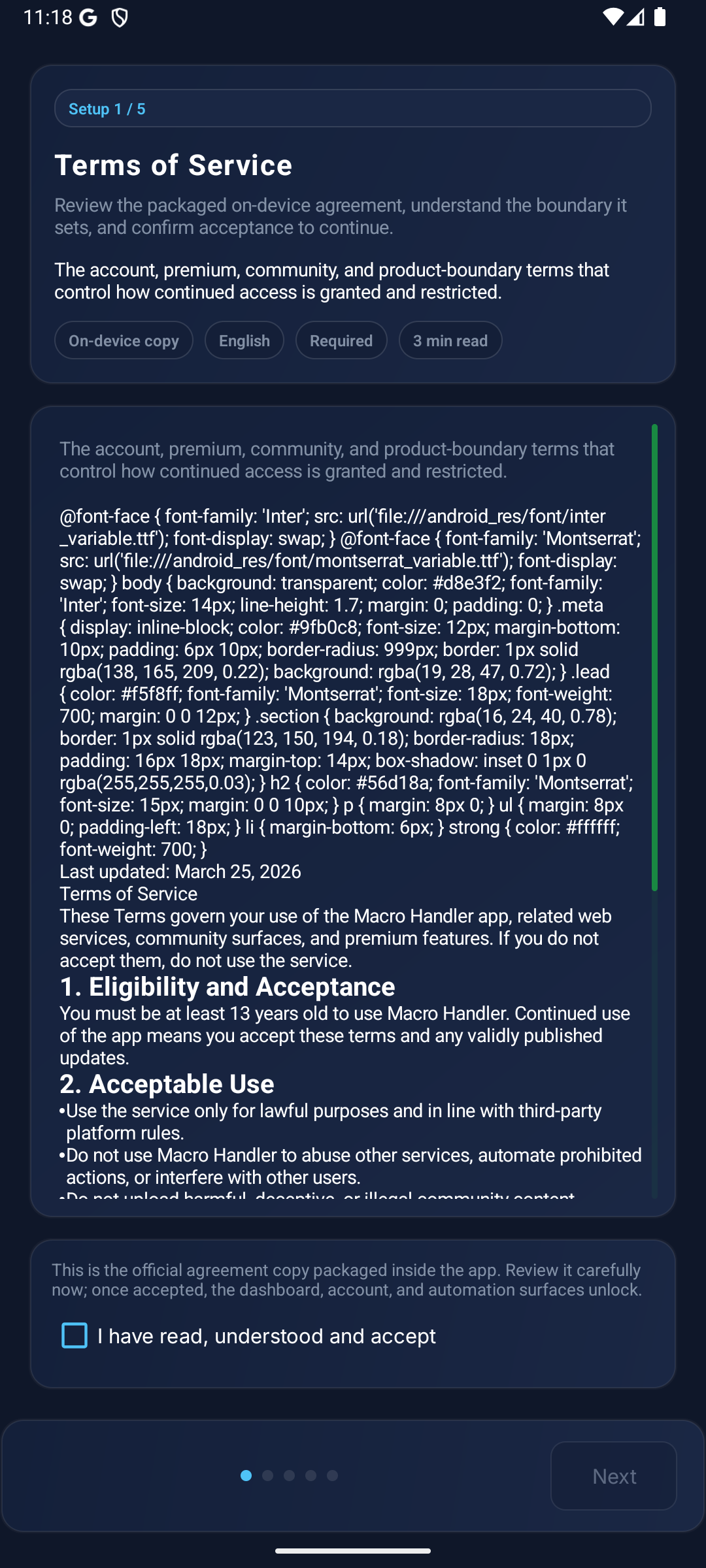
The Privacy Policy, Terms of Service, and EULA are shown as the official packaged copies inside the app. This is a one-time step that does not repeat on later launches. It is where the data-processing boundary, product-use rules, license framework, and the conditions behind premium or community surfaces are stated clearly.
- Privacy Policy: How your personal data is protected
- Terms of Service: Usage rules of the application
- EULA: End User License Agreement
Grant Permissions in the Setup Wizard
Right after the agreements, a full-screen setup wizard opens. Each page explains one permission and takes you to the matching Android setting. Macros need Display Over Apps and Accessibility to read the screen and tap; on Android 7–10, Screen Capture is added.
- 1Display Over AppsRequired for the control panel and the HUD. It comes first because it is the quickest to grant.
- 2AccessibilityRequired to read the active screen and to perform the taps and swipes of the macros you build. A macro you give a trigger runs on its own; if you turn it on, the MH-AI assistant uses this permission too.
- 3Screen Capture (Android 7–10 only)On these devices screen capture is session consent: it can be requested again after the app, emulator or device restarts. It is required for OCR, colour and template tools. On Android 11 and later this page is not shown.
- 4Build Your First MacroOn the last page you choose Visual Builder (No Code), Code Editor (Lua) or Skip For Now. If you skip, the + button at the top right of the Home screen creates a new macro at any time.
Permission Status
Permission Progress
After setup
Permission Status panel
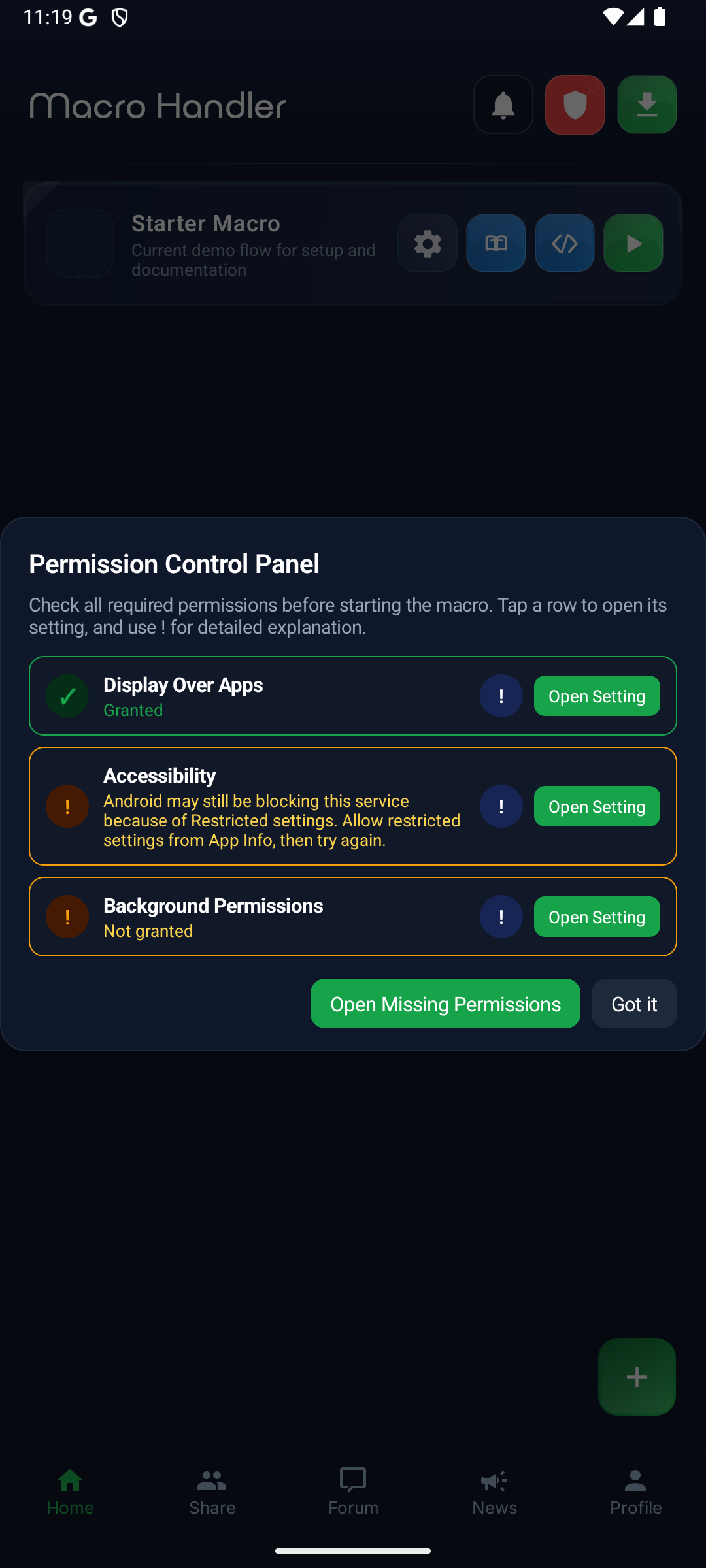
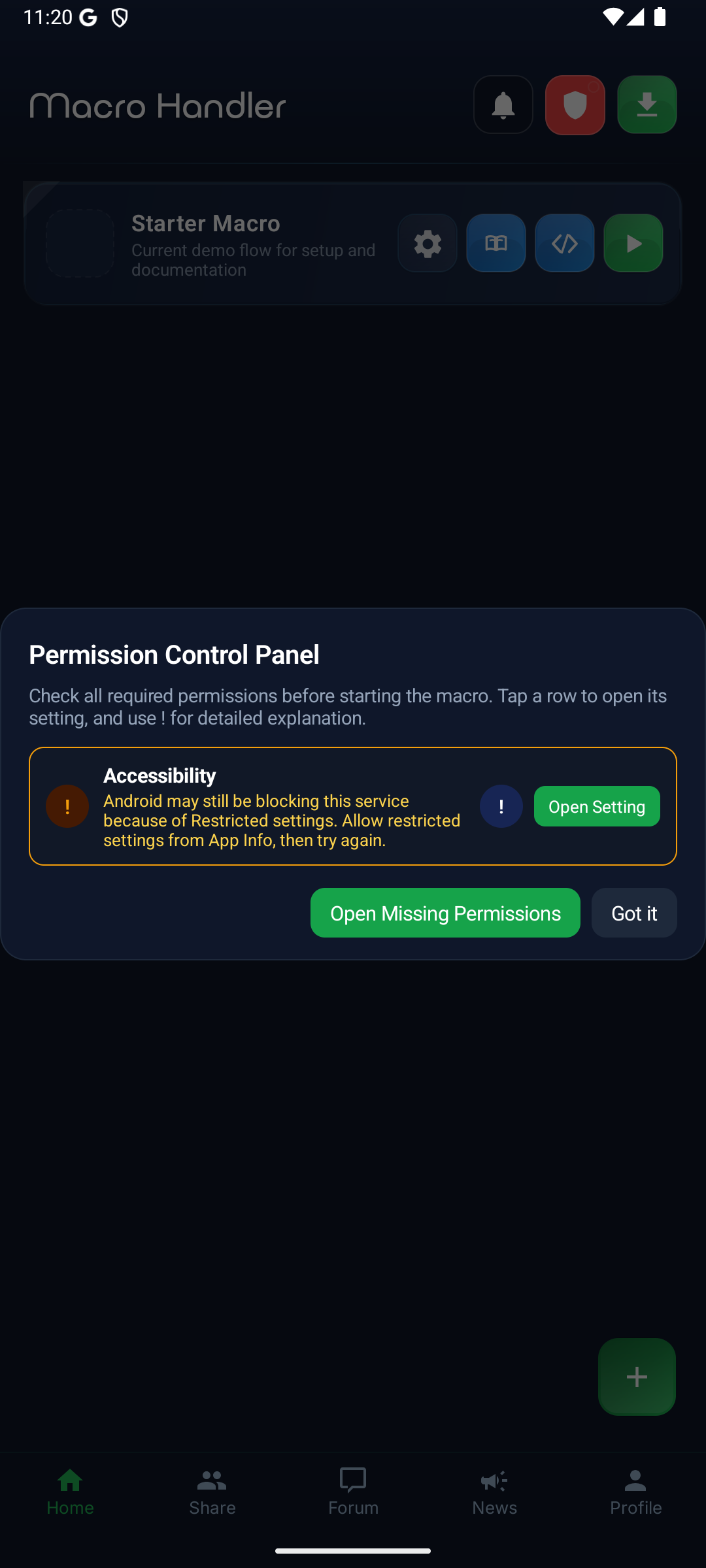
On every wizard page, tap the large button to read exactly what the permission is used for and to open the Android setting. You can leave a permission for later and continue with Next; the permission status button on the dashboard shows which permission is still missing and checks again when you return from the Android setting.
Android 11 and later
Screen-recording consent when a macro starts
When a macro that reads the screen starts (blocks such as Image, Text, Color or OCR), Android may ask for its screen-recording permission; Macro Handler uses it by default because it is faster. Android does not let an app keep this grant after it closes, so you may be asked again. To stop being asked, turn on “Capture the screen with the accessibility service” in Settings; scanning then refreshes about three times per second.
Display Over Other Apps (Overlay)
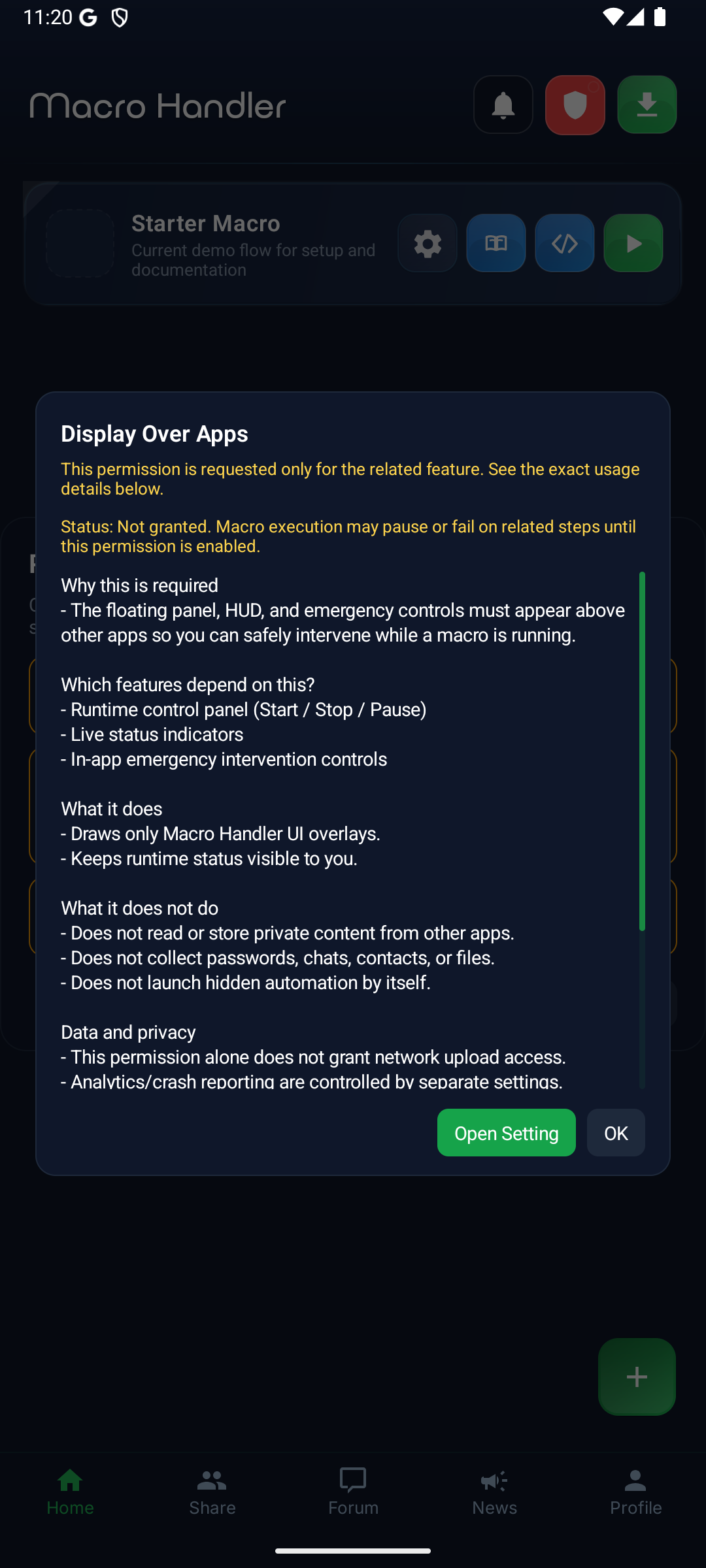
Required for the control panel, HUD overlay, and helper tools. This permission allows floating buttons and info panels to appear on screen while macros run. The app directs you to Android settings. On some Android builds the Macro Handler entry and the permission switch appear on the same screen, while other devices open the app-specific page first and enable the permission there.
Overlay Guidance
Disclosure
Detailed Guidance
Accessibility Service
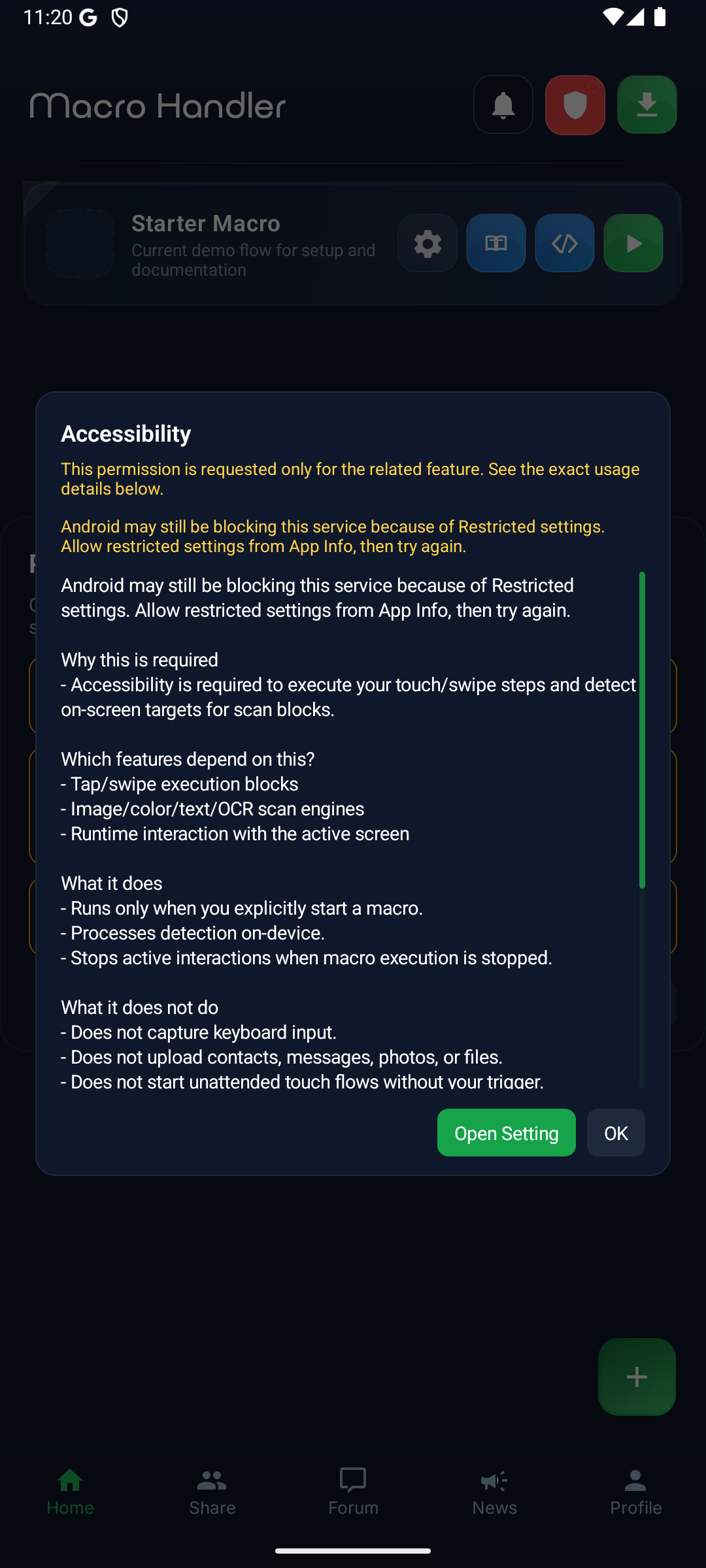
Required to analyze screen content, detect images, and perform touch automation. First review the in-app permission disclosure, then enable the Macro Handler service from Android accessibility settings. Your device may show an additional Android warning before activation; confirm it to continue.
Sign In
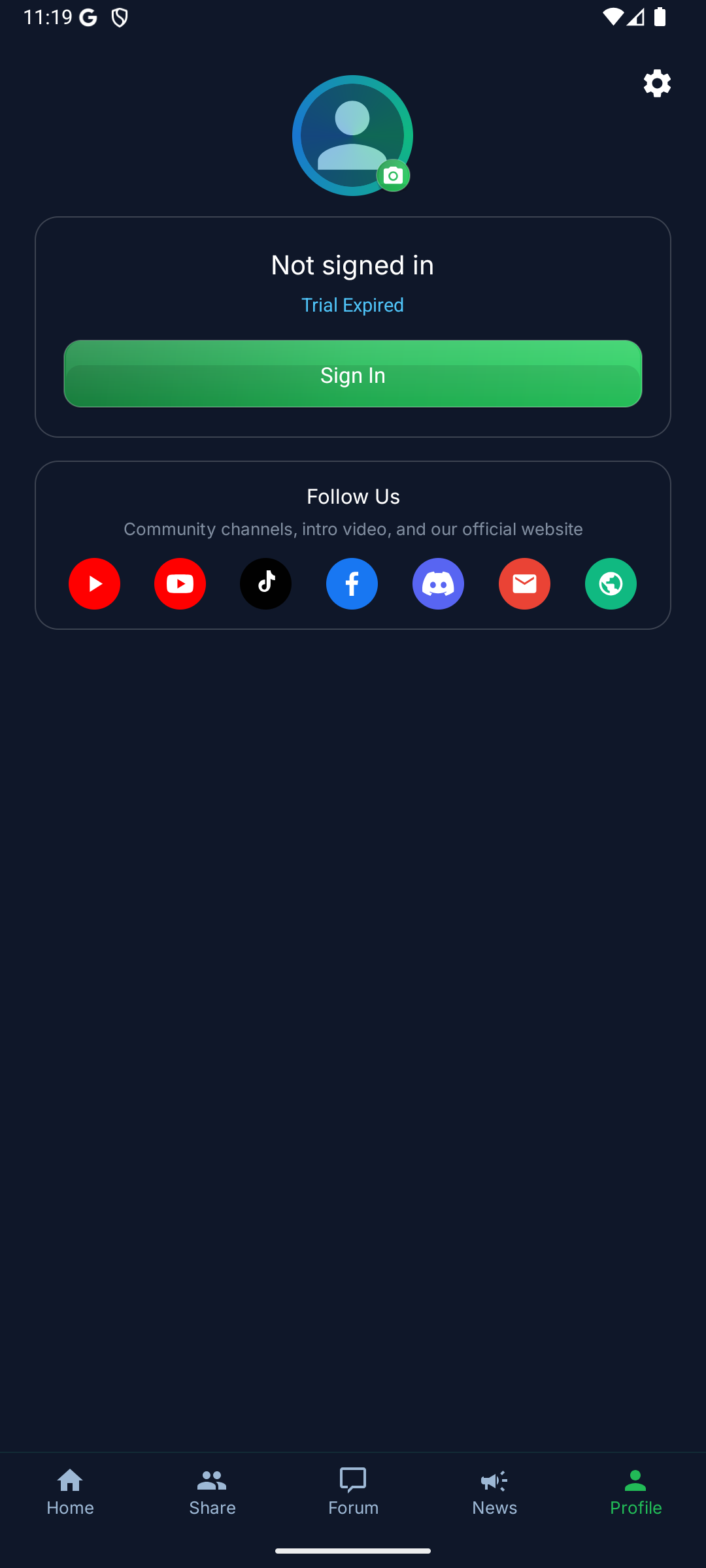
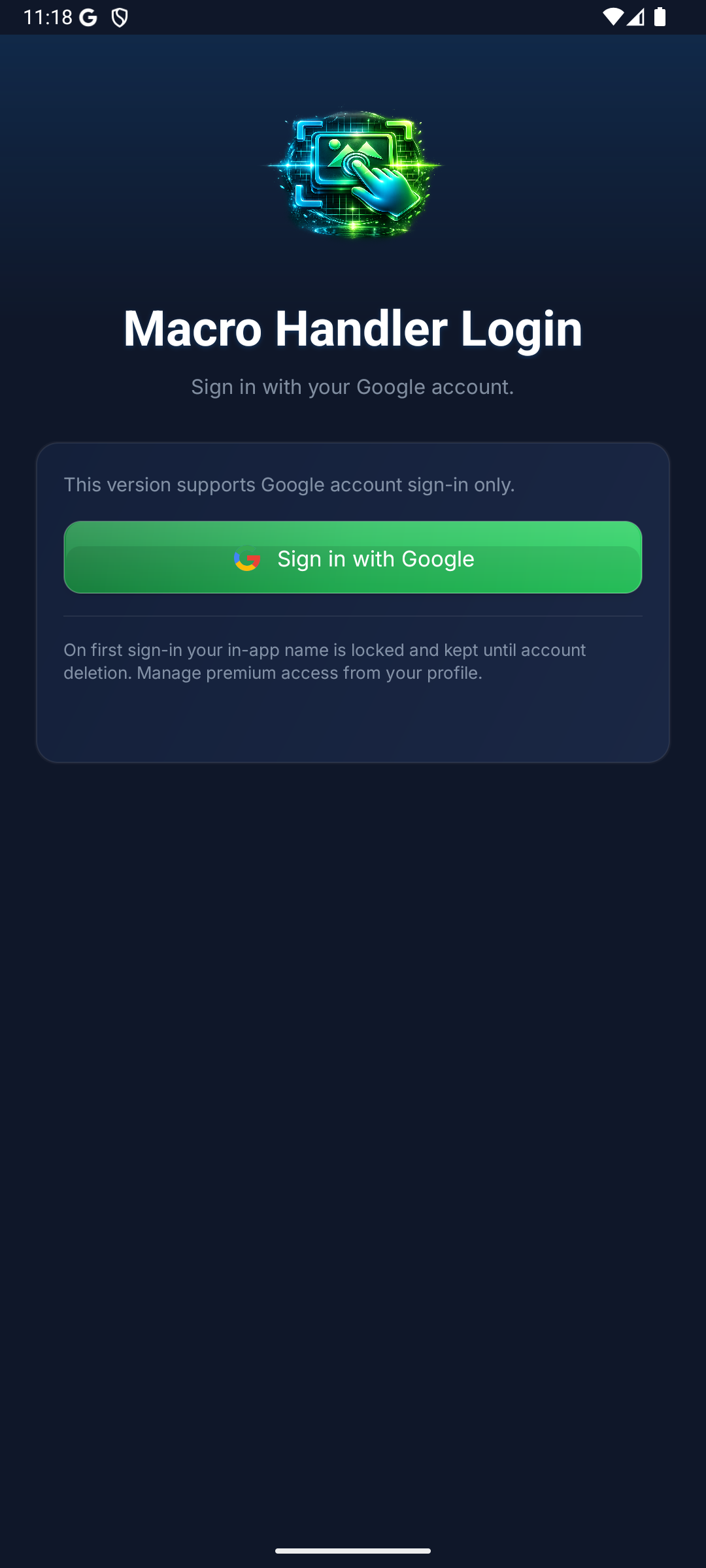
Sign-in is optional when you first open the app; you can build and run macros without an account. Sign in with your Google account for sharing, the community, Premium, Cloud Vault and Macro Transfer. Your in-app name is set at first sign-in and kept until the account is deleted. The Profile tab shows your account and your Premium status.
- Sign-in uses your Google account only
- On the free plan macros run in short sessions; Premium runs them without interruption
Profile
Sign In
Create Your First Macro
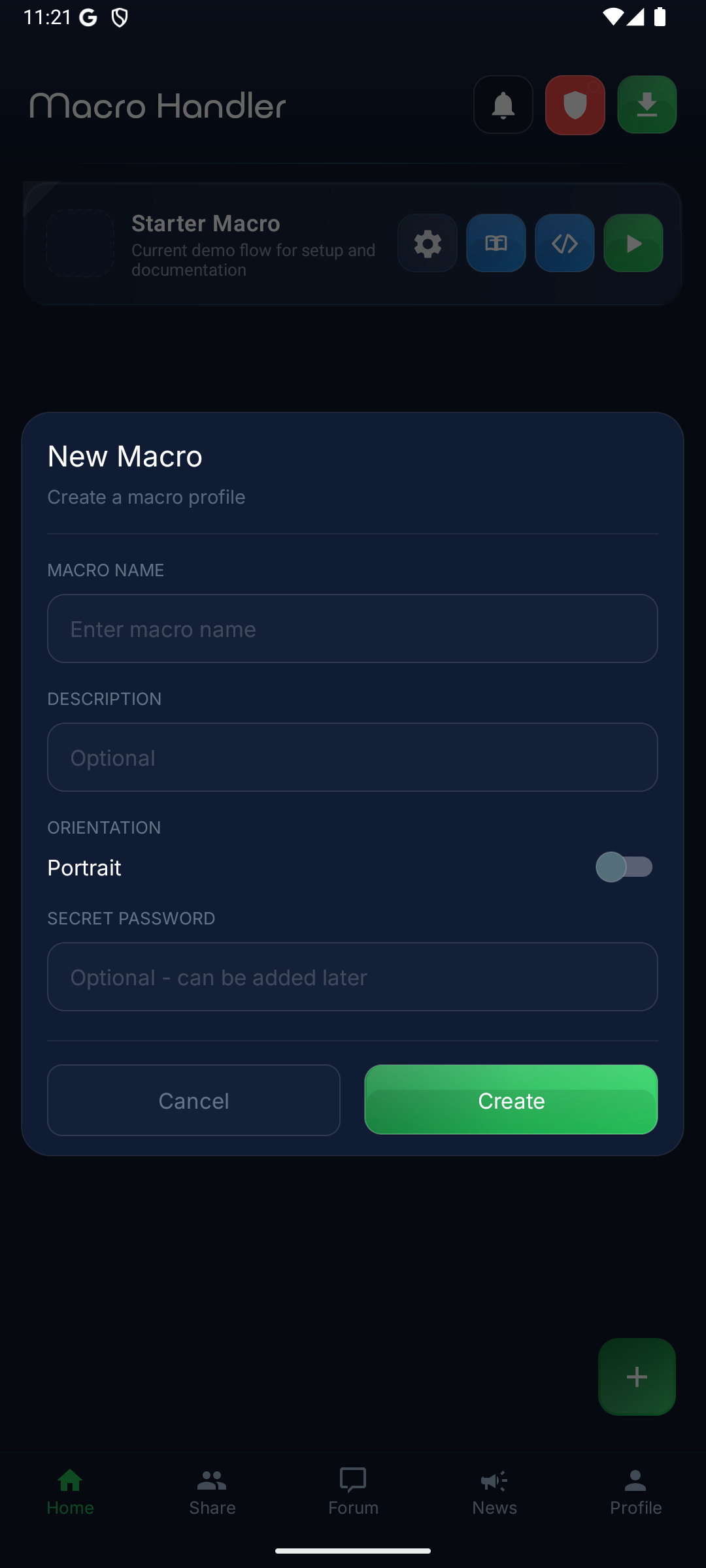
Tap the + button at the top right of the Home screen. The new macro window asks for a name; a description, an icon and a secret password are optional. Created macros appear in the list on the Home screen.
- Macro Name and Description: The name appears in the list; the description reminds you what the macro does.
- Icon: Use an installed app’s icon with App Icon, or your own image with From Gallery.
- Orientation: Pick Portrait or Landscape here; Landscape is usual for game macros. Macro Settings also offers Any and Automatic.
- Secret Password: Optional, and it can be added later. A protected macro asks for it every time its No-Code Workspace, Code Editor or Logic Workspace opens, from the Home screen and from the control panel alike.
Dashboard
New Macro
Configure Macro Settings
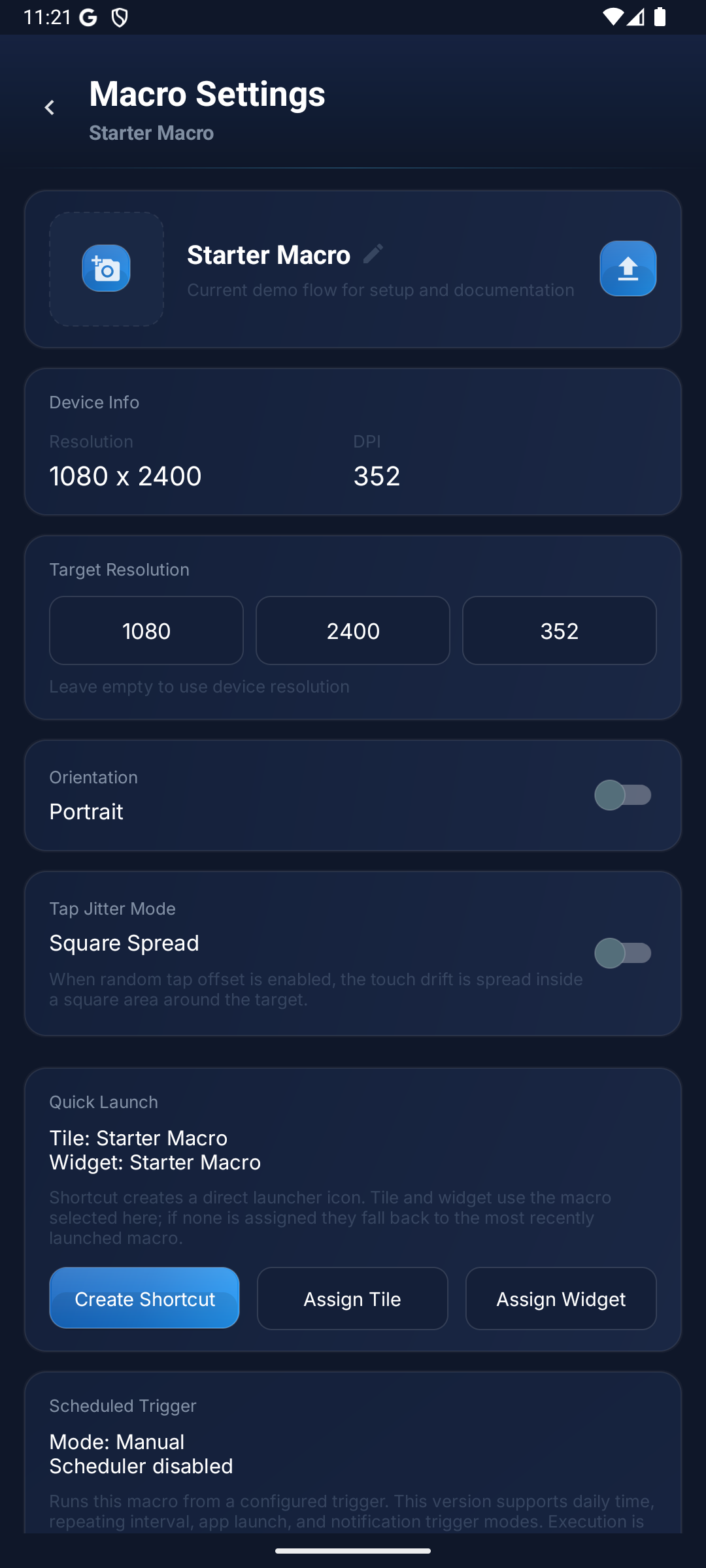
Macro Settings keeps each macro’s screen profile, orientation, start options and run options in one place. Changes are stored with Save.
Screen profile and adaptation
Device Info shows this device’s resolution and DPI. Leave Target Resolution empty to use the device values. With Resolution Adaptation on Automatic, the macro keeps its aspect ratio in the same orientation. Move a no-code macro written for another device onto this screen with Adapt to this device. Running on another device
Orientation
Choose Any, Landscape, Portrait or Automatic. Locking the orientation the macro was written in keeps coordinates from shifting on a rotated screen.
Runtime target app
A macro can open an app when it starts: Do not open an app, Open once when the macro starts, or Open and keep in foreground. Keeping it in front uses bounded retries; if the app cannot be brought forward, the macro stops instead of acting in the wrong app.
Scheduled Trigger
Start the macro by hand, or automatically on a daily time, an interval, app and notification events, battery, charger, screen, volume key, broadcast or remote trigger. App launch is the one exception: it opens the control panel and waits for you to press Play. Conditions and the permissions they need are covered in the guide. Triggers and conditions
Quick Launch
Create Shortcut adds a direct launcher icon. Assign Tile and Assign Widget bind the quick settings tile and the home screen widget to this macro; without an assignment they use the most recently launched macro. Copy Link gives a link that opens the macro but never starts the run by itself.
Run options
Tap Jitter Mode sets how random tap drift is spread around the target. Keep screen on stops the display from dimming while the macro runs. Detection Quality picks the speed and accuracy balance of image searches: Auto, Fast, Balanced or Precise.
Guide, password and export
Edit Guide lets you write, format and preview the macro’s setup and usage instructions. Add Secret locks the macro; Export opens the options for saving and moving the macro as a package. Shared macros keep their time limits and play-only restrictions. Import, Cloud Vault and Macro Transfer
Macro Settings
Run with Control Panel
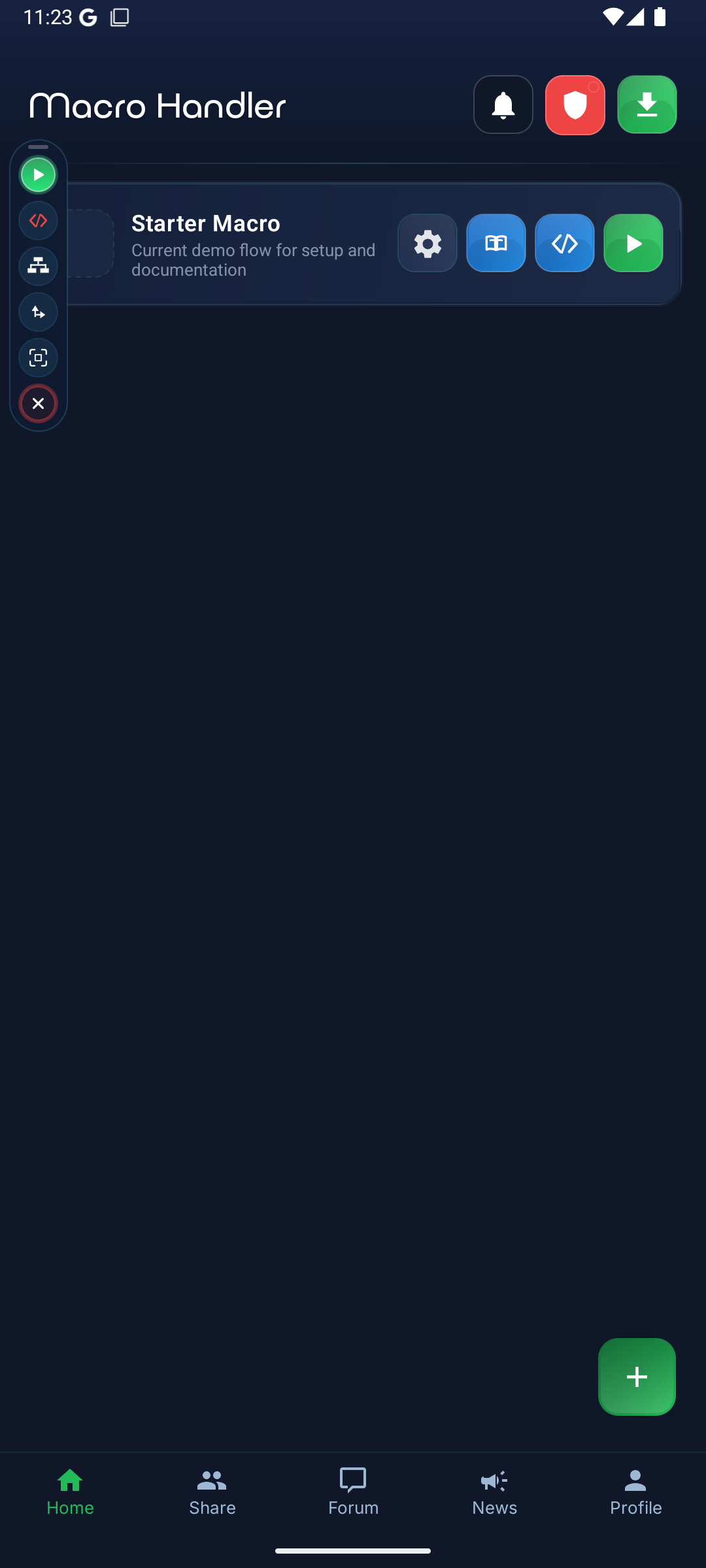
The control panel is a floating rail that stays above any app. Drag it to move it, and switch it between horizontal and vertical layouts in Settings. Some buttons appear only when they apply; screen dimming and humanization, for example, show while a macro runs. Press and hold a button to open its help.
- Start / Stop, Pause, Minimize: Starts the macro or stops it safely, pauses it without ending the session, and collapses the panel into a bubble without stopping the macro.
- Add Code, No-Code Workspace, Logic Workspace, MH AI: Open the active macro’s Code Editor, no-code block list, Logic canvas or the MH-AI assistant on top of the game.
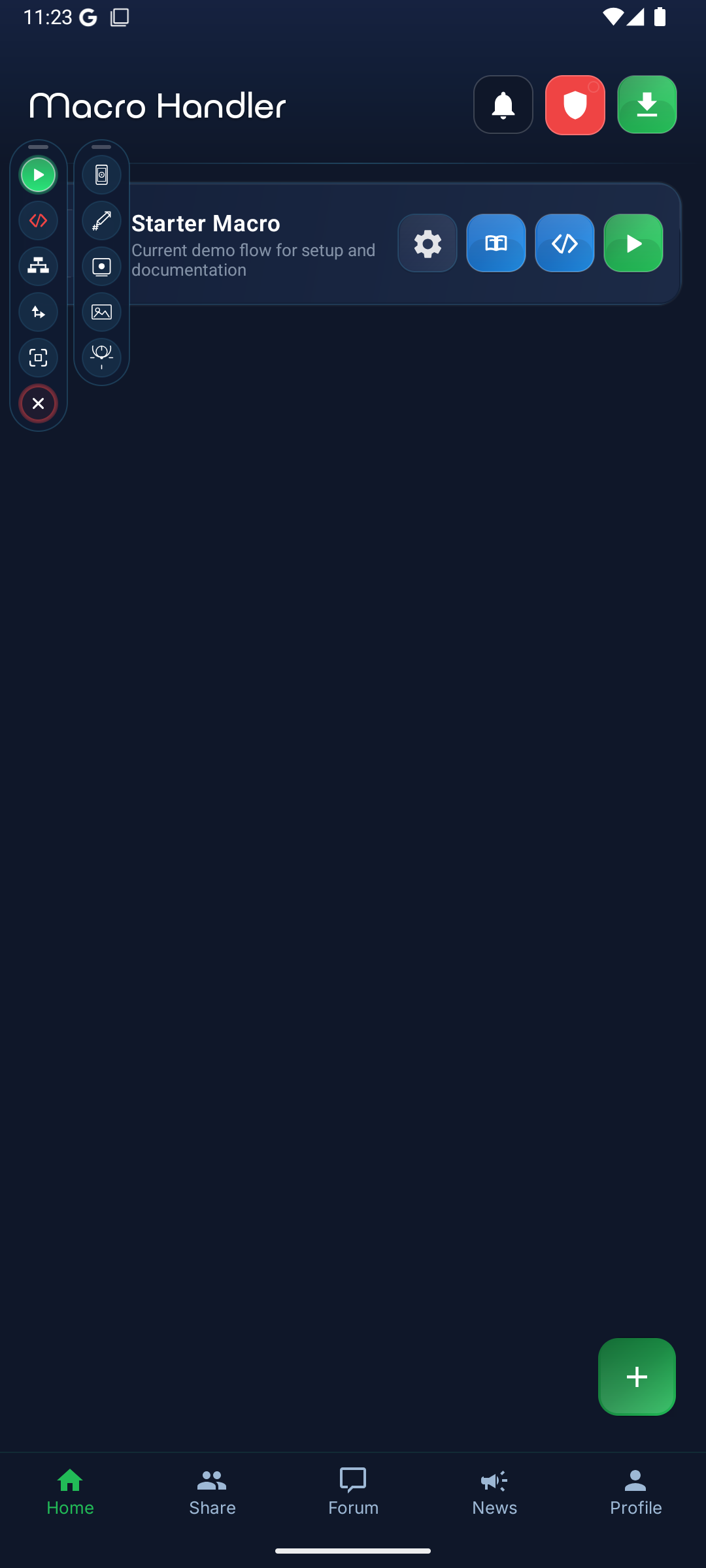
- Tools: Opens the helper rail: capture screen region, pick screen color, record gestures, gallery, touch debugging and the Macro flow log.
- Work Area Settings: Shows the area the macro works in and its reference profile; changes the work area and starts the verification walk.
- Dimming and humanization: While a macro runs, dims the screen without changing automation coordinates and cycles gesture variation through off, low, medium and high.
- Stop and close: Stops the running macro and closes the panel. Holding and releasing the minimized bubble works as an emergency stop.
Most rail buttons are explained in detail: In-app help
Main Panel
Helper
Main Panel View
The first capture shows the command rail of the active macro. The buttons that start and stop the macro and open the editors live here.
Helper Panel View
The second capture shows the helper rail opened with Tools. Region capture, color picking and recording tools live in this layer.
App Settings
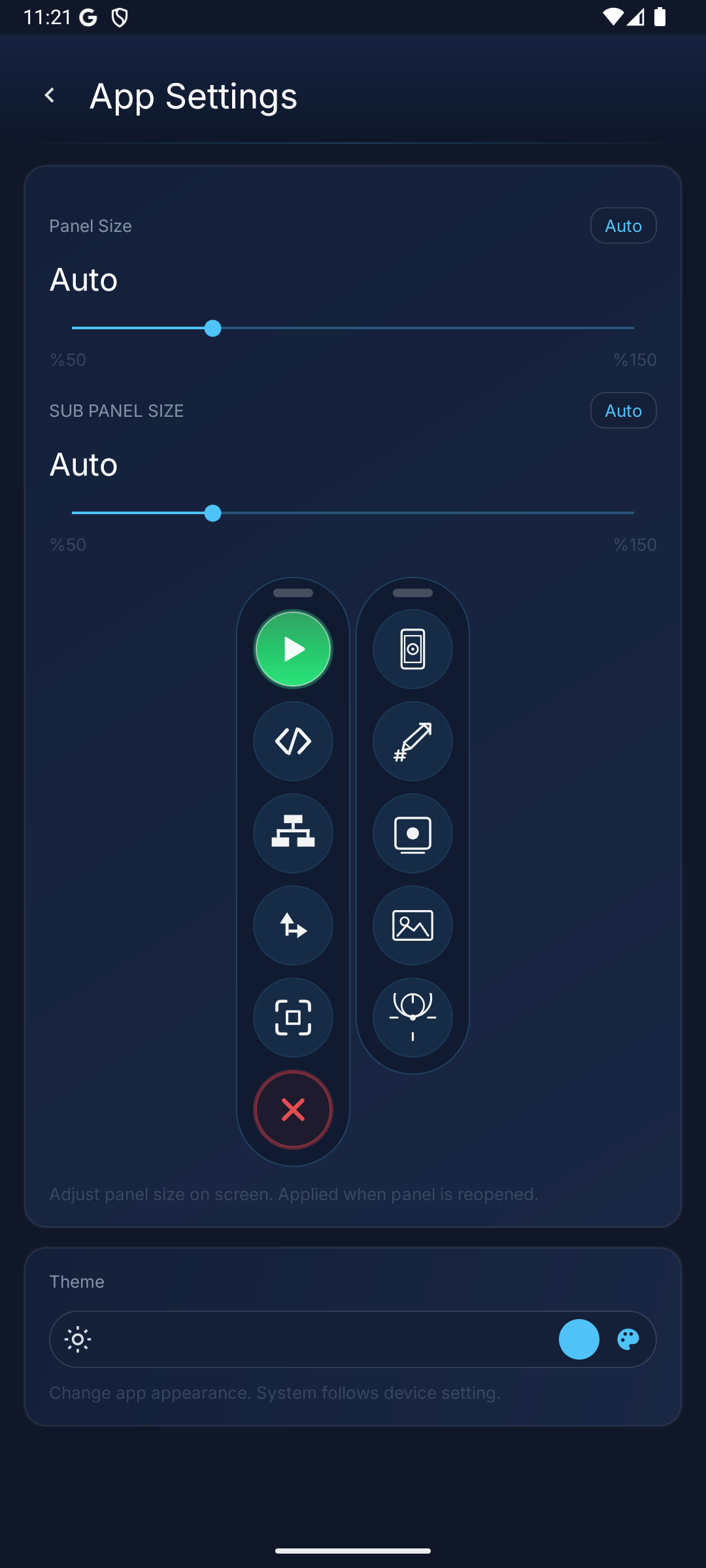
In the Settings tab you set the size and visibility of the floating panels, the app theme, the interface scale, the screen-capture route and the language. These settings apply to all your macros.
- Panel Size and Sub Panel Size: The control panel can be Auto or 25%–150%, and the sub panel 25%–150%. Changes apply when the panel is reopened.
- Control panel opacity and layout: The highest value keeps the panel fully opaque; lower values make it more transparent. Switch the panel between horizontal and vertical layouts here.
- Theme: Light and Dark each come in four tones, so you choose one of eight tones in all.
- Interface and button size: Shrinks or enlarges the whole interface between 50% and 150%; 100% is the original layout and the starting value is 120%. Automation coordinates and scan regions never change.
- Capture the screen with the accessibility service: On Android 11 and later the screen-recording permission is no longer requested; scanning refreshes about three times per second.
- Language: 14 languages are selectable on both the website and the Android app settings. The Android app starts in the phone's language when it is one of them, otherwise in English; the website starts in English. Users can switch either one to their preferred language at any time.
App Settings
Battery Optimization (OEM Settings)
Some manufacturer software (Samsung, Xiaomi, OnePlus, etc.) aggressively restricts background apps. Without these settings, long macros may silently stop or end when the device enters sleep mode.
Background Guidance
OEM Checklist
Step 1
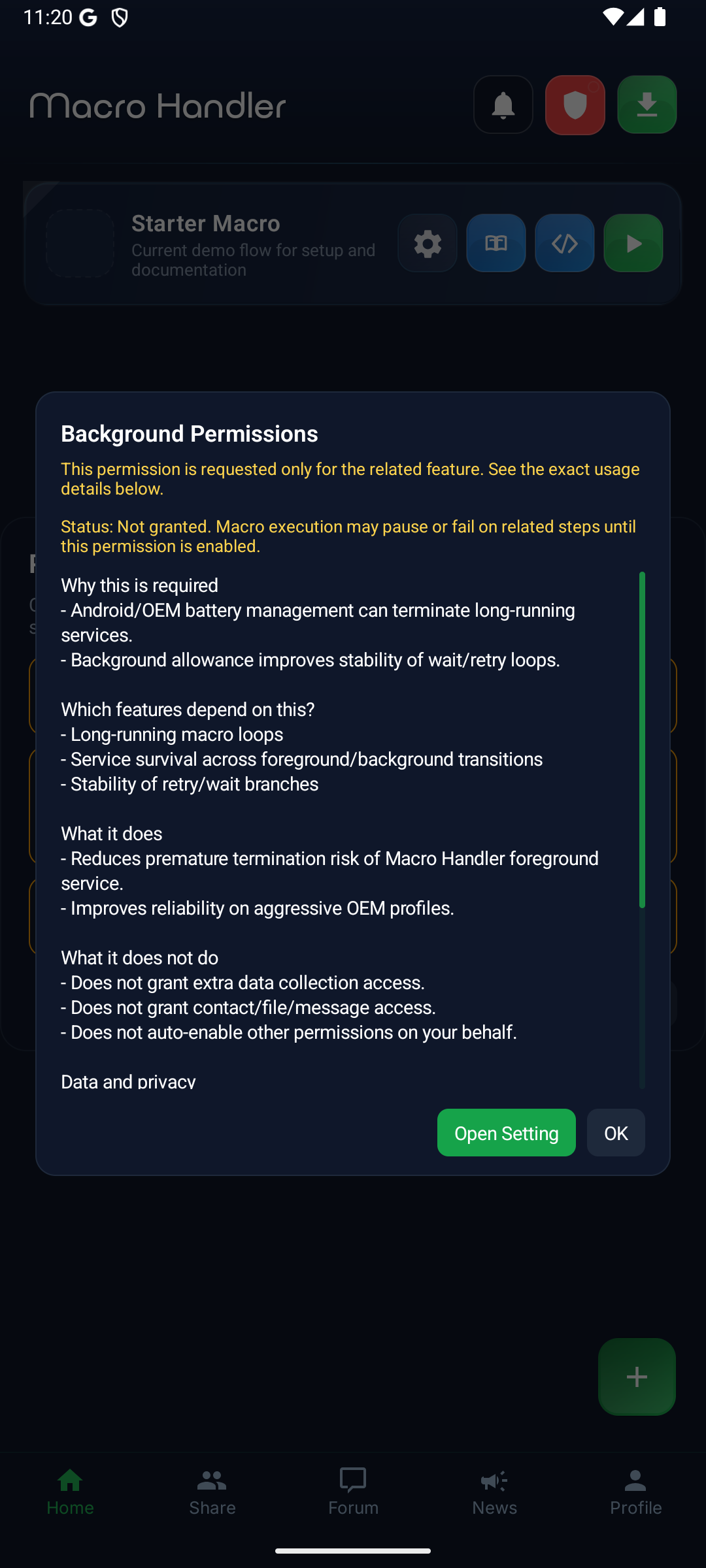
Background Protection Guidance
The first capture shows the detailed in-app guidance that explains why background protection matters. It lets you see which permission or OEM-specific step is still missing before you leave the app.
Step 2
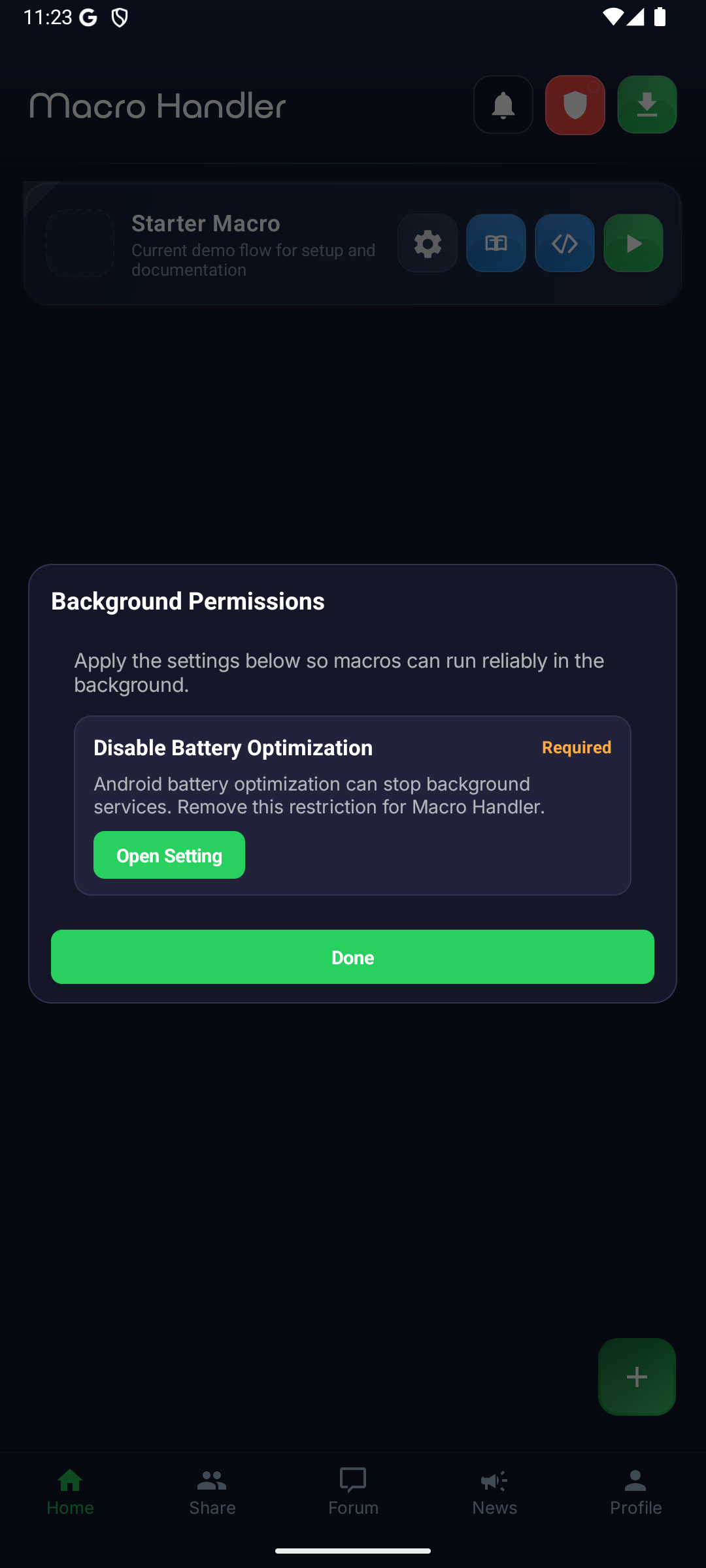
Complete the OEM Checklist
The second capture shows the OEM battery and background checklist inside Macro Handler. The "Open" buttons take you to the required Android or manufacturer page; on your device, enable wording such as "Unrestricted", "No restrictions", or "Allow background use".
Android (Standard)
- 1Settings -> Apps -> Macro Handler
- 2Battery -> Select "Unrestricted"
- 3Set Macro Handler battery mode to "Unrestricted"
Samsung (One UI)
- 1Settings -> Battery -> Background usage limits
- 2Remove Macro Handler from "Sleeping apps" and "Deep sleeping apps" lists
- 3Settings -> Battery -> More battery settings -> Enable "Allow apps not optimized"
Xiaomi / MIUI / HyperOS
- 1Settings -> Apps -> Manage apps -> Macro Handler
- 2Autostart: ON
- 3Battery saver -> Select "No restrictions"
- 4Security -> Permissions -> Autostart: Enable Macro Handler
OnePlus / Oppo (OxygenOS / ColorOS)
- 1Settings -> Battery -> App battery management
- 2Macro Handler -> Select "Allow background activity"
Huawei (EMUI)
- 1Settings -> Battery -> App launch
- 2Macro Handler -> Disable automatic management -> Manually enable "Auto-launch", "Secondary launch", and "Run in background"
General Tip
For macros running several hours, keep your device plugged in. Low-battery restrictions are reduced while charging. The app guides you to battery optimization settings and OEM-specific background controls; completing those steps is important for long-running macros.